The Events module lets you create, schedule, and manage fixed and recurring tours, activities, and events that customers can book online — all from a single page with a visual timeline.
Applies to: Events is a premium module (BR. If you don't see it, contact BRM Support to enable it for your business.
New Events experience. This article covers the updated Events page. If your account still shows the older events table, you can ask to switch — contact BRM Support to move to the new experience.
Opening the Events page
- Go to Settings → Optional Modules → Events (you may need to scroll to the bottom of the Optional Modules list).
- Make sure the Events module is enabled in your package. If it isn't, contact BRM Support.
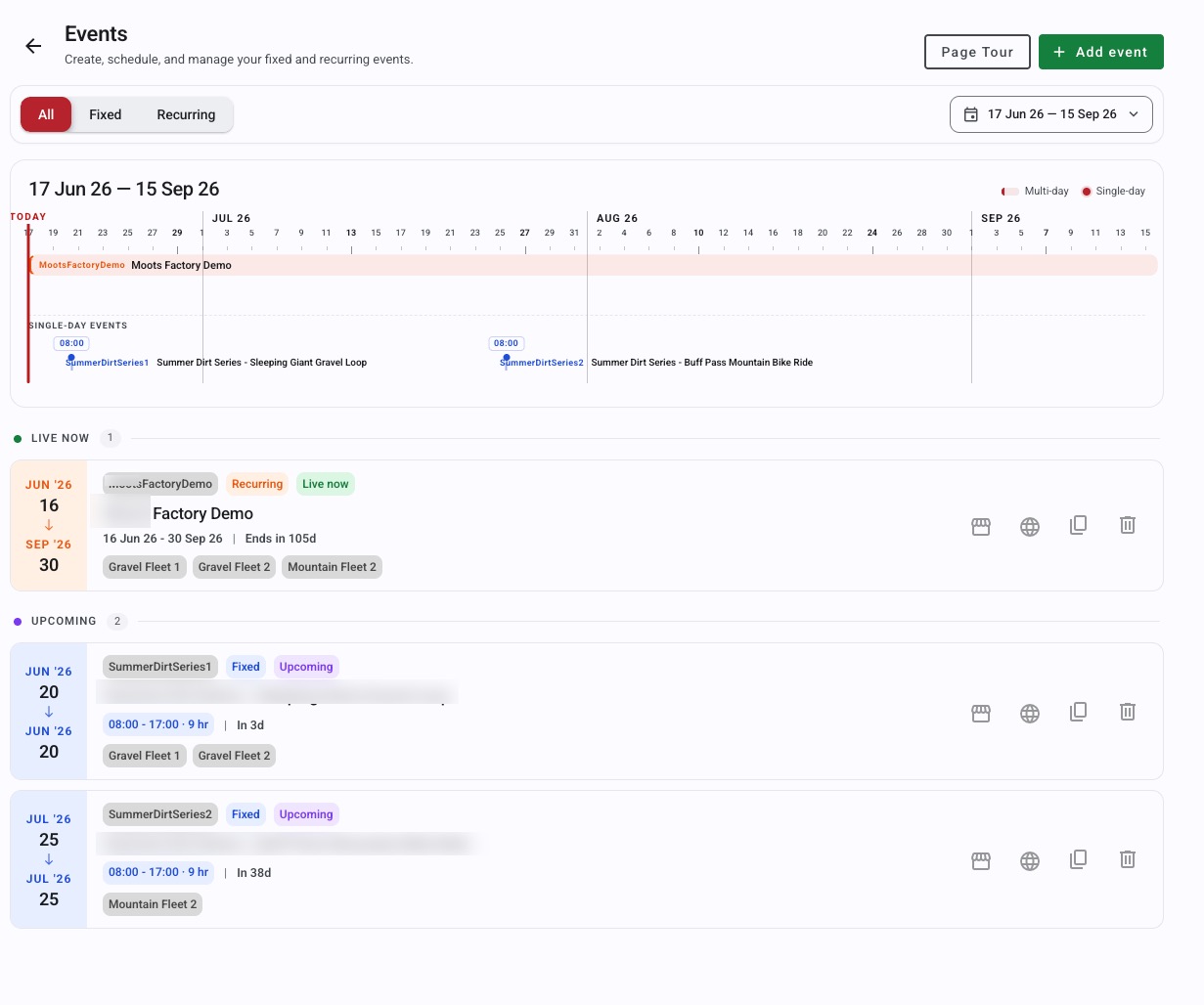
[image: Settings → Optional Modules → Events]
The first time you open it the list is empty. Click + Add event to create your first one. New to the page? Click Page Tour at the top right for a guided walkthrough.
Understanding the Events page
The page gives you three ways to see your events at a glance:
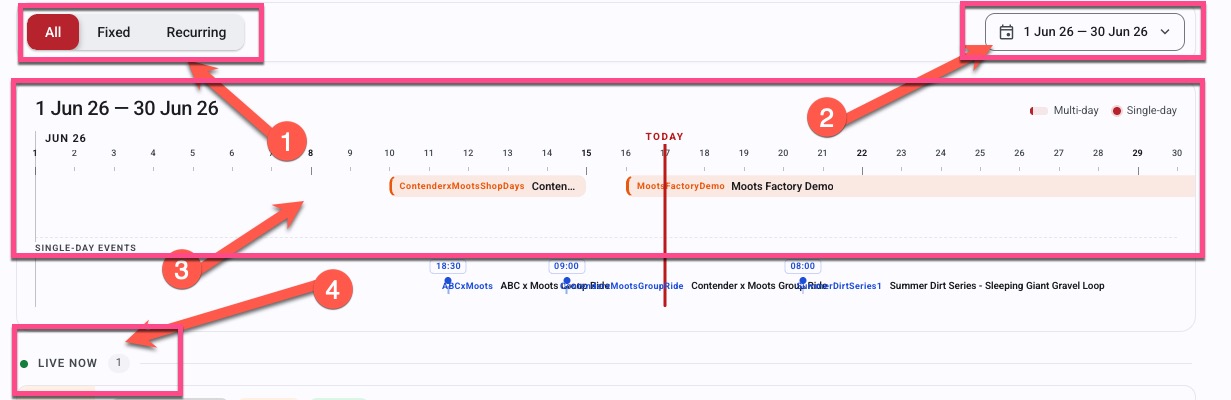
[image: the Events page showing the timeline and Live now sections]
- Filter tabs — All, Fixed, and Recurring let you narrow the list to one event type.
- Date range — the selector at the top right (e.g. 17 Jun 26 — 15 Sep 26) sets the window the timeline shows.
- Timeline — a visual calendar of your events across that range. Multi-day events appear as a bar; single-day events appear as a dot. A red "Today" line marks the current date.
- Live now — events that are currently bookable, with a count, listed as cards below the timeline.
Adding an event
- Click + Add event to open the event detail page.
- Fill in the event details (below).
- Save. Your new event appears in the list and on the timeline.
Event details
- Code — This is generated automatically from your event title
- Title — the name customers see (e.g. Wine Tasting Tour).
- Description — a chance to describe and promote the event.
- Event Type — Fixed Date for a one-off event such as an annual sportive, or Recurring for an event that repeats such as a weekly shuttle ride.
- Image — an image to represent the event.
- Conditions — any restrictions or requirements that apply.
- Reservation Type — which reservation type is used for bookings.
- Categories — list specific categories to show only those, or leave blank to show all available categories.
Recurring events
If you choose Recurring, extra fields appear for valid dates and times. These make sure only the dates and times you specify are available for online booking.
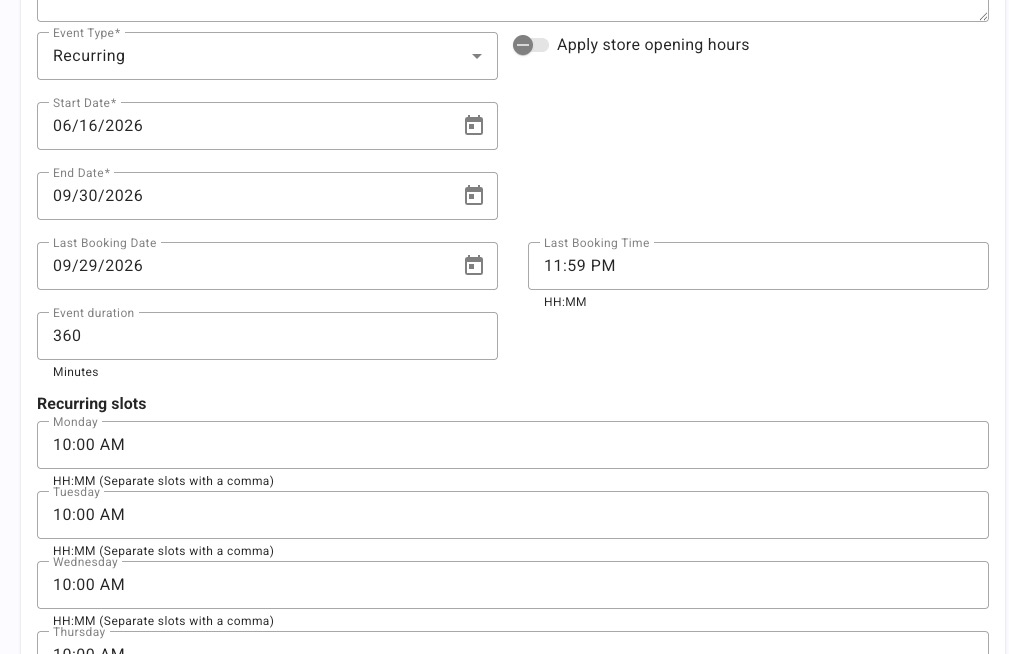
[image: recurring event date and time fields]
Managing an existing event
Each event shows as a card with its date range, status tags (such as Recurring and Live now), title, and a countdown like "Ends in 189d". Any sub-options you've set up (for example Choose Forest Tour / Choose Singletrack Tour) appear as chips on the card.

[image: an event card with its status tags and action icons]
On the right of each card are quick actions:
- Open in store — view the event in your store listing.
- View booking page — open the live online booking page customers use.
- Duplicate — copy the event as a starting point for a new one.
- Delete — remove the event.
Note for review: please confirm the exact behaviour of the four card icons (store / globe / duplicate / delete) before publishing.
Categories as part of the event
If you set category preferences on the event, they apply to the code automatically
Event Groups
Event Groups are a new feature accessible only on the new Customer Booking Portal (CBP) - you can now group your events by type and they will appear to your users in those specified groups on your Booking Portal.
You might want to consider this feature if you have a lot of events so users are not overwhelmed, it allows them to search for a specific interest without needing to sift through dozens of events that are not relevant.
You are also able to create 'Internal Only' events, these events will never be shown to the customers (see Internal Only events below for more info on how to create 'private events')

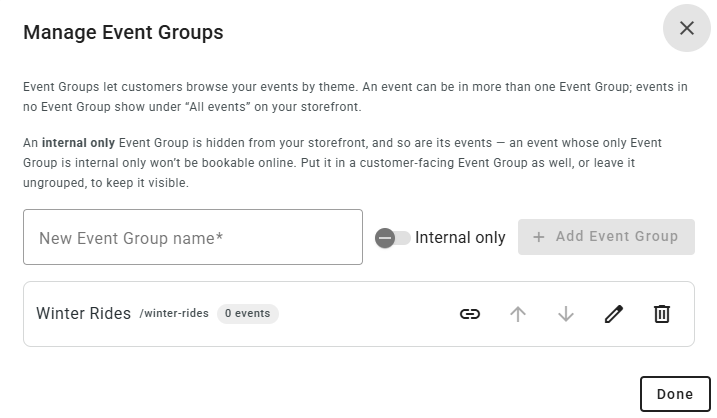

An item can be in one or more Event Group, and Internal Only event groups will NEVER be shown to the customers.
Event Pricing
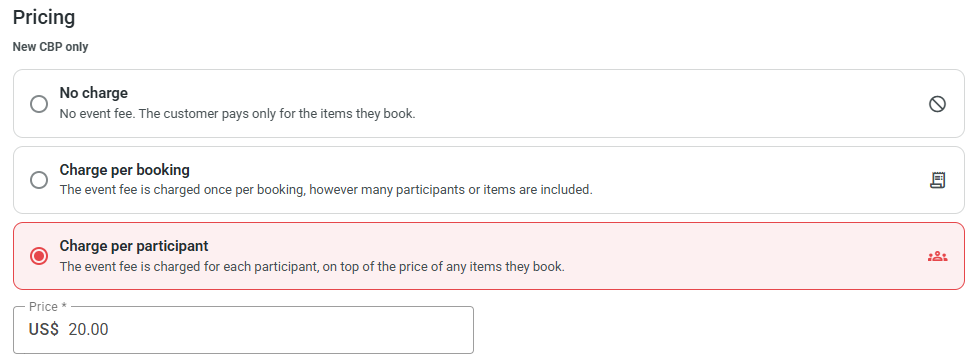
Event Pricing is a new feature that allows you to now charge for the event itself instead of relying on inventory.
There are 3 types:
No charge - the default for existing/new events, this is current behaviour and will not add any amount onto the bill.
Charge Per Booking - a single, flat rate per booking, no matter how many items have been added. The amount will be displayed to the user during the booking process and be added as a line item. In our case that is $20 (the currency is your stores currency)
Charge Per Participant - This one allows you to consider One Item = One person. If you have a Snowboard Backcountry tour, maybe the Snowboard itself counts as ONE person, therefor you can have multiple people on one booking and still charge a flat rate PER person (item) this will be displayed to the user and added as a line-item to their booking.
Charge Per Booking
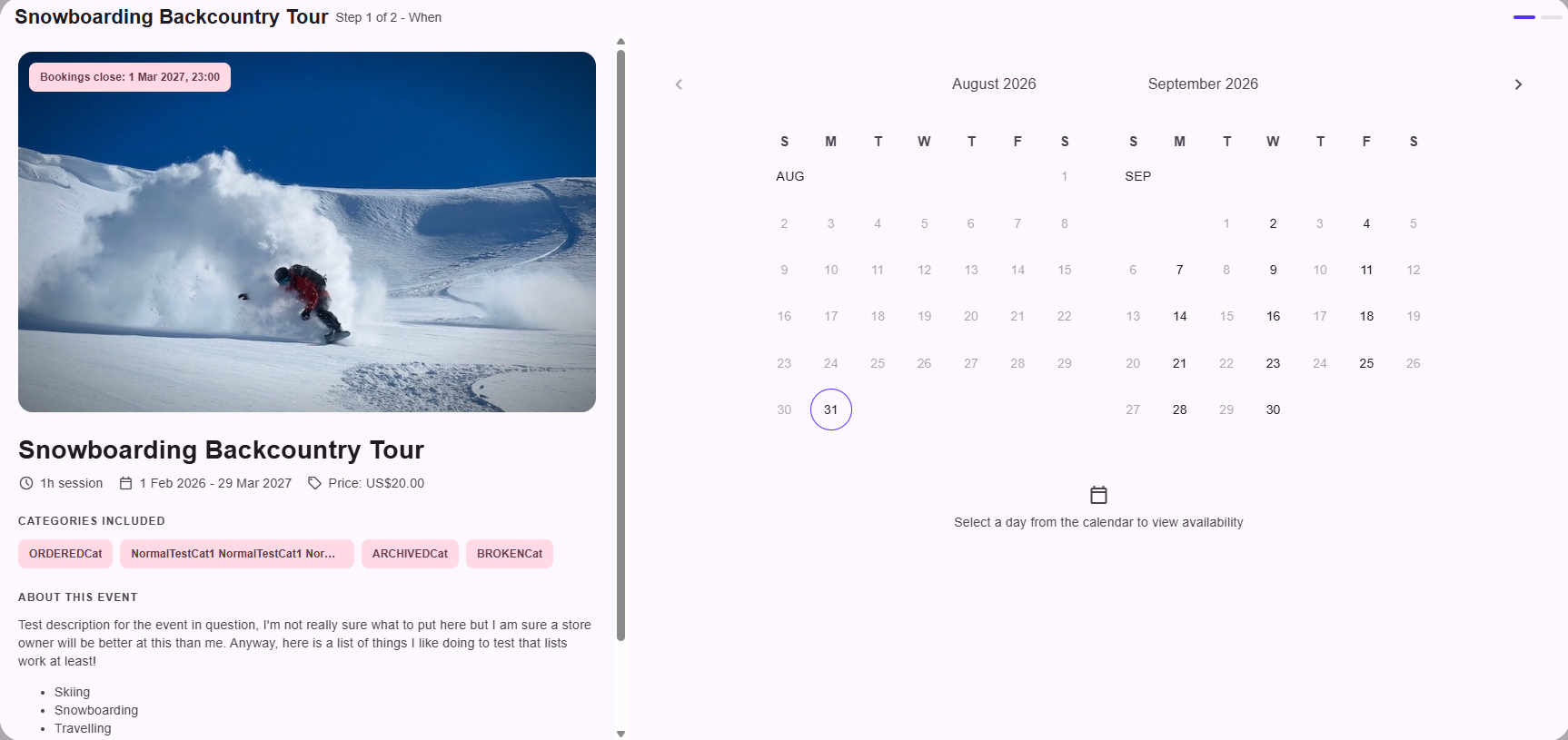
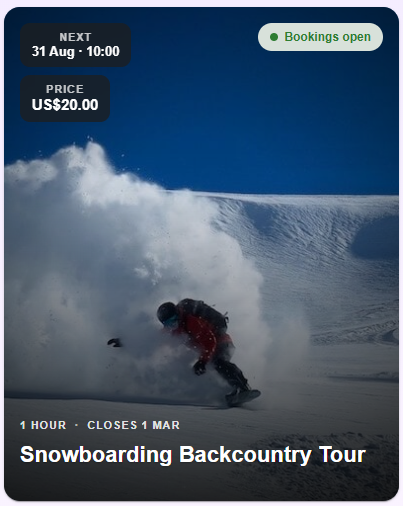
Charge Per Item
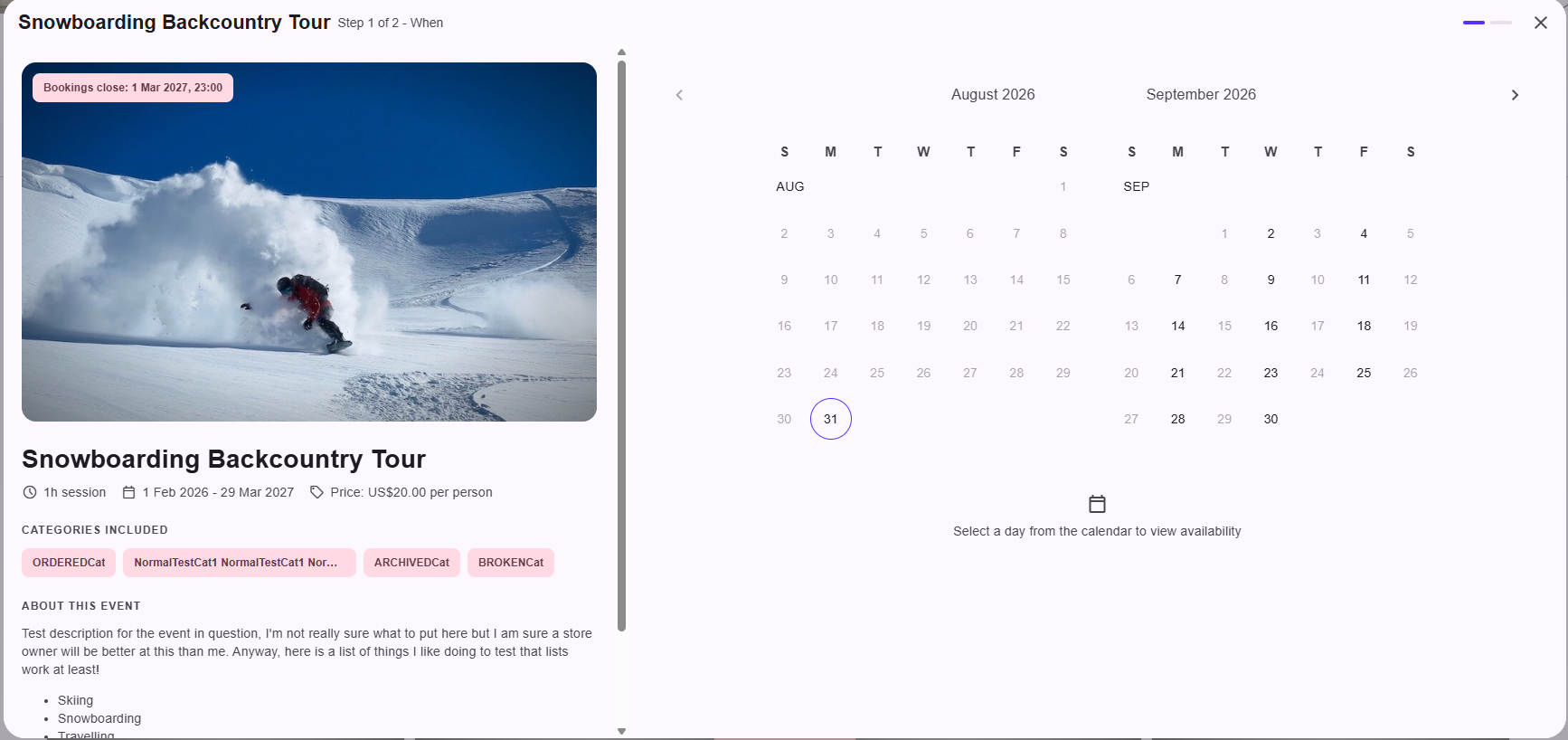
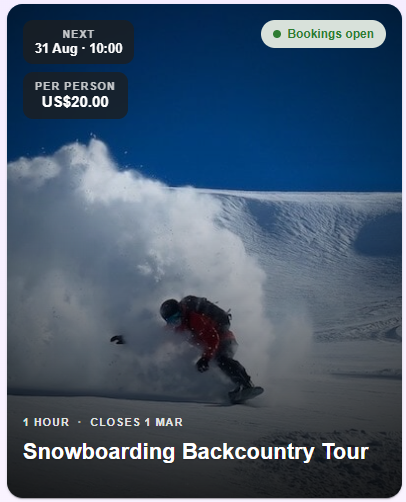
Event Pricing also impacts booking fees, something to keep in mind when setting prices/fees for the events.
Scenario one:
- Lift pass
- Event charge £20 per participant
- Only category assigned to this event is 'Tickets' which contains free inventory, which allows for capping per day due to availability
- 2 people booking on would pay £40 (2 x £20)
Scenario two:
- Bike Tour in the Alpes
- Event Charged £20 per participant
- Any categories, bikes retain original price (let's say £50)
- 2 people booking on would pay £140, (2 bikes is £100, plus 2 event fees at £40)
Scenario three:
- Group Snowboarding Tour
- Event charged at £100 per booking
- Any categories, products retain original price (again, let's say £50)
- 10 people booking on would be £600, (10 products at £50 each and 1 booking fee of £100)
So, in all cases, you wouldn't put the price on the TICKET (like you potentially have in the past) you would put that £30 charge on the event itself, then charge as you feel for the products.
If you were used to putting a 'Ticket' item priced at X amount, where the user could then select the item(s) they want for their booking, you will no longer need to do this workaround. You can set your ticket price as the price ON the event itself, and if you are only really renting items under it, you can remove the event entirely.
Caveats: This does not work if you have multiple items for one person, in that case they will need to make seperate bookings. (Charge per booking instead of Charge per participant)
Internal Only
When creating/editing an event you can set the event to 'Internal Only' - this means it will not directly display on your booking portal , however clicking the Globe icon on your events card WILL still open it as standalone, this means you can directly share a private event with someone without it appearing in your main feed for other customers.
Internal only events are marked with a strike-through eye icon.
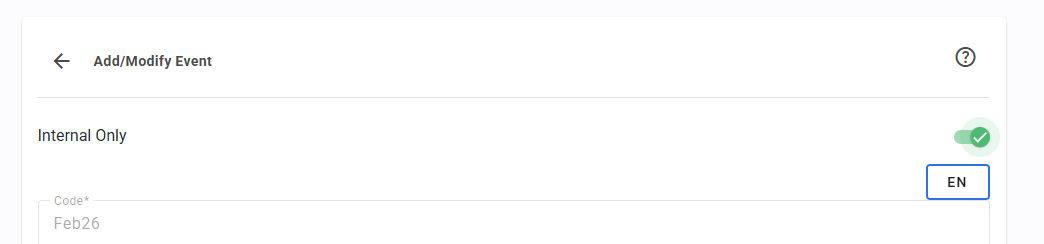

If you want a pure internal only event, create an 'Internal Only' Event Group (see above) and then it will not be accessible at all. You can update which Event Group an Event belongs to at any time.
Notes & tips
- Use the Fixed and Recurring tabs to quickly check just your one-off events or just your repeating ones.
- The timeline only shows events that fall inside the selected date range — widen the range if an event seems to be missing.
Troubleshooting
My event isn't showing on the timeline. Check that the event's dates fall inside the date range selected at the top right, and that the active filter tab (All / Fixed / Recurring) includes its type.
I don't see the Events option under Optional Modules. Events is a premium module. Contact BRM Support to have it enabled for your business.
Bookable dates or times are wrong on a recurring event. Open the event and check the valid dates and times fields — only the dates and times listed there are offered for online booking.
See Also
Was this article helpful?
That’s Great!
Thank you for your feedback
Sorry! We couldn't be helpful
Thank you for your feedback
Feedback sent
We appreciate your effort and will try to fix the article