A Booking Fee can be applied to bookings made online through the Customer Booking Page (CBP) or from the back office.
You can configure the fee as a percentage or fixed value of the booking value and choose which service offerings it applies to. When enabled for online bookings, the fee is shown to customers during the booking process.
For bookings created from the back office, you can either apply the fee automatically or choose whether to apply it when creating an individual booking.
Please note: Booking Fees do not contribute to your plan ceilings & is reserved for those customers on Hybrid pricing plans
Before you start
Booking Fee is available on the new Customer Booking Page (CBP). Make sure you are using the new CBP.
How to publish CBP?
1. Open Extras & Add-ons
From your BRM dashboard, go to Settings → Extras & Add-ons.
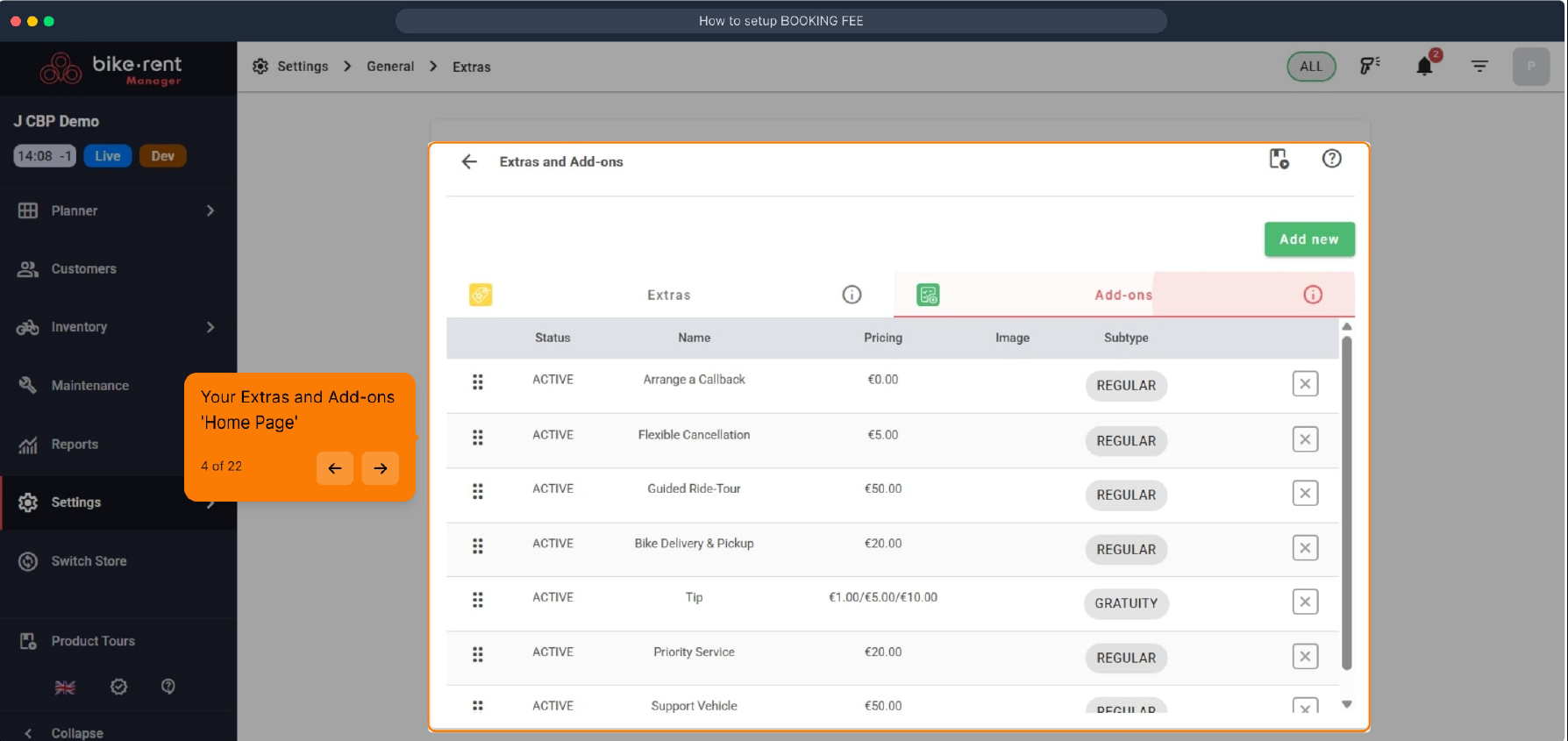
2. Create a Booking Fee
Click Add new, select Reservation as the level, then select Booking Fee as the subtype.
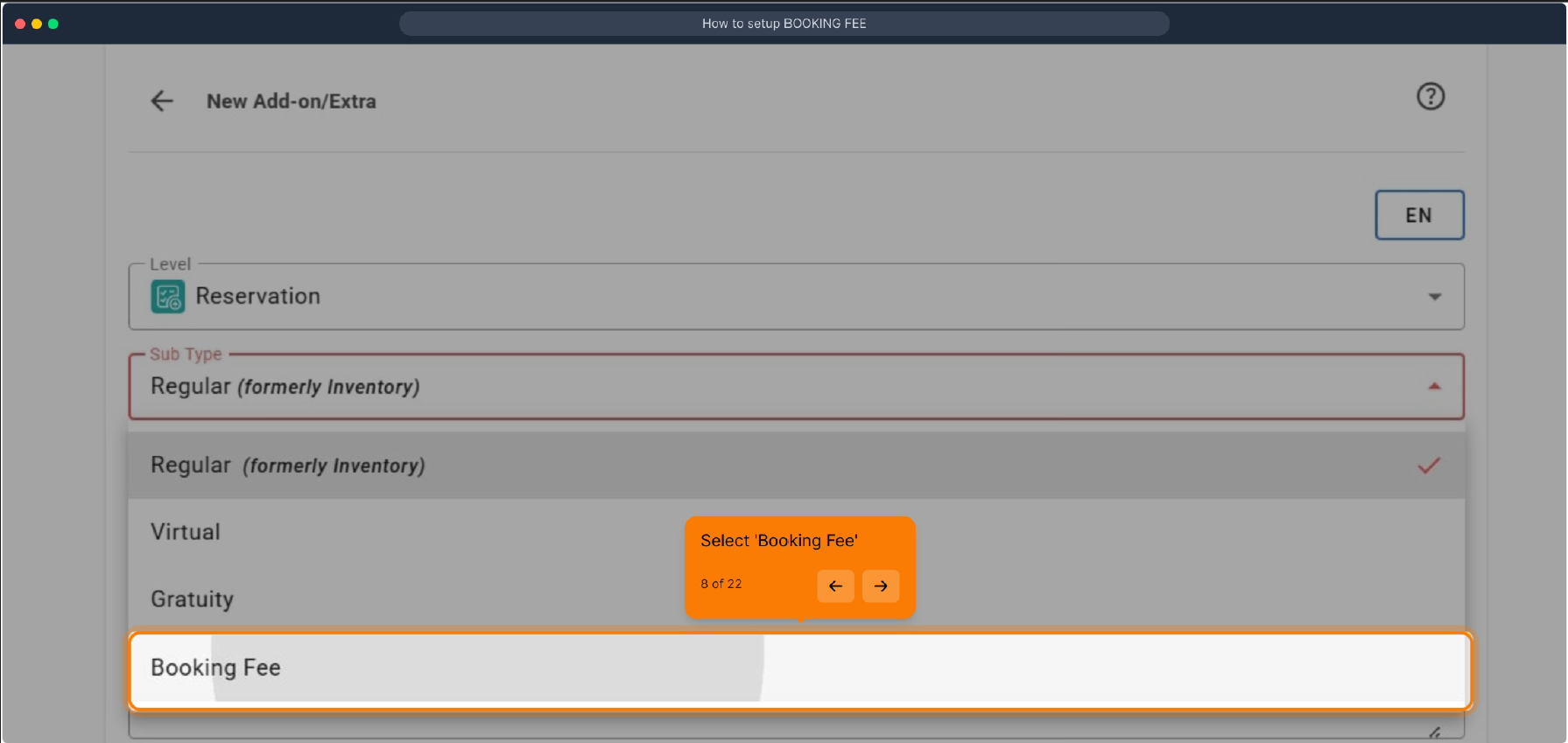
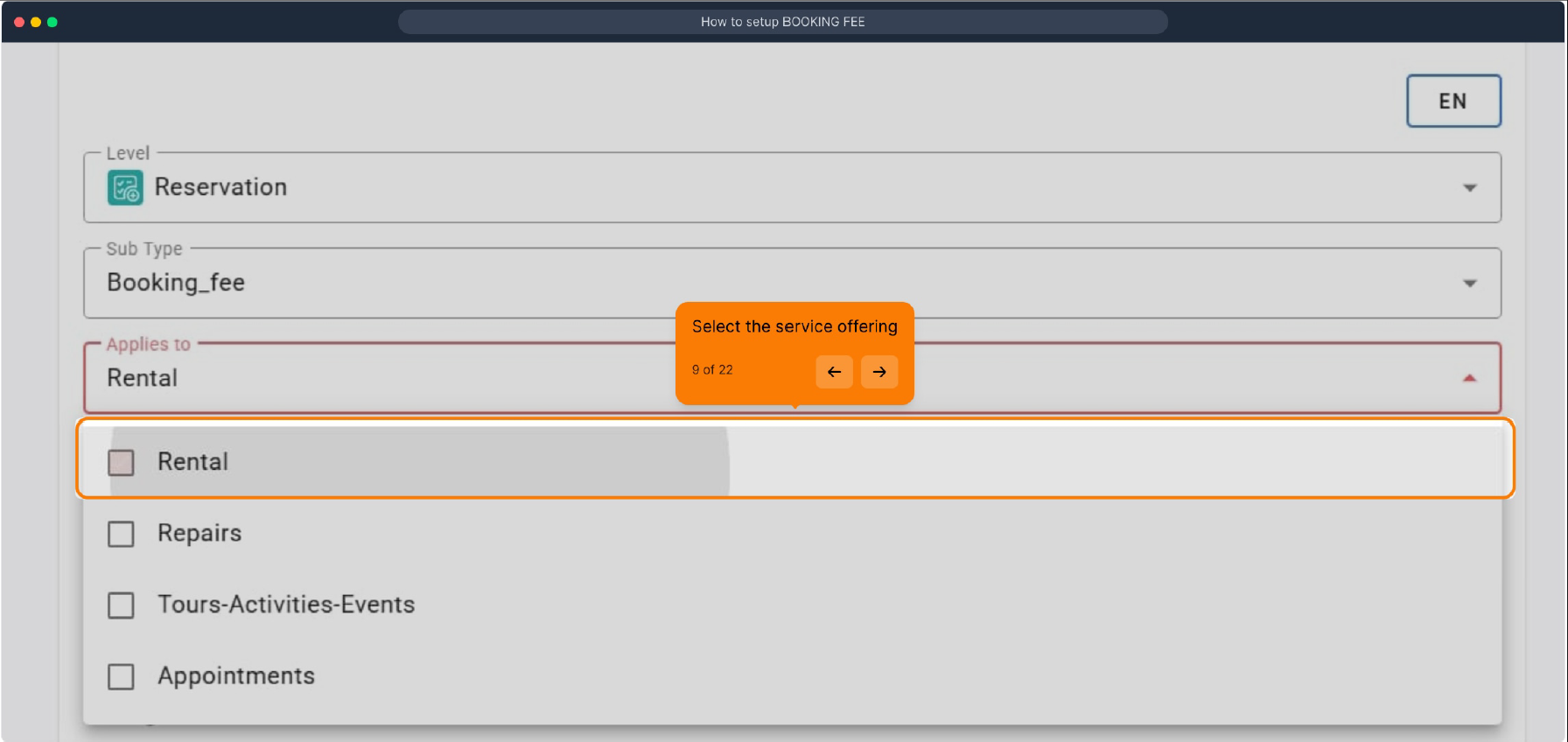
3. Choose where the fee applies
Select the service offering(s) you want the Booking Fee to apply to. You can leave the selection empty to apply the fee to every service offering.
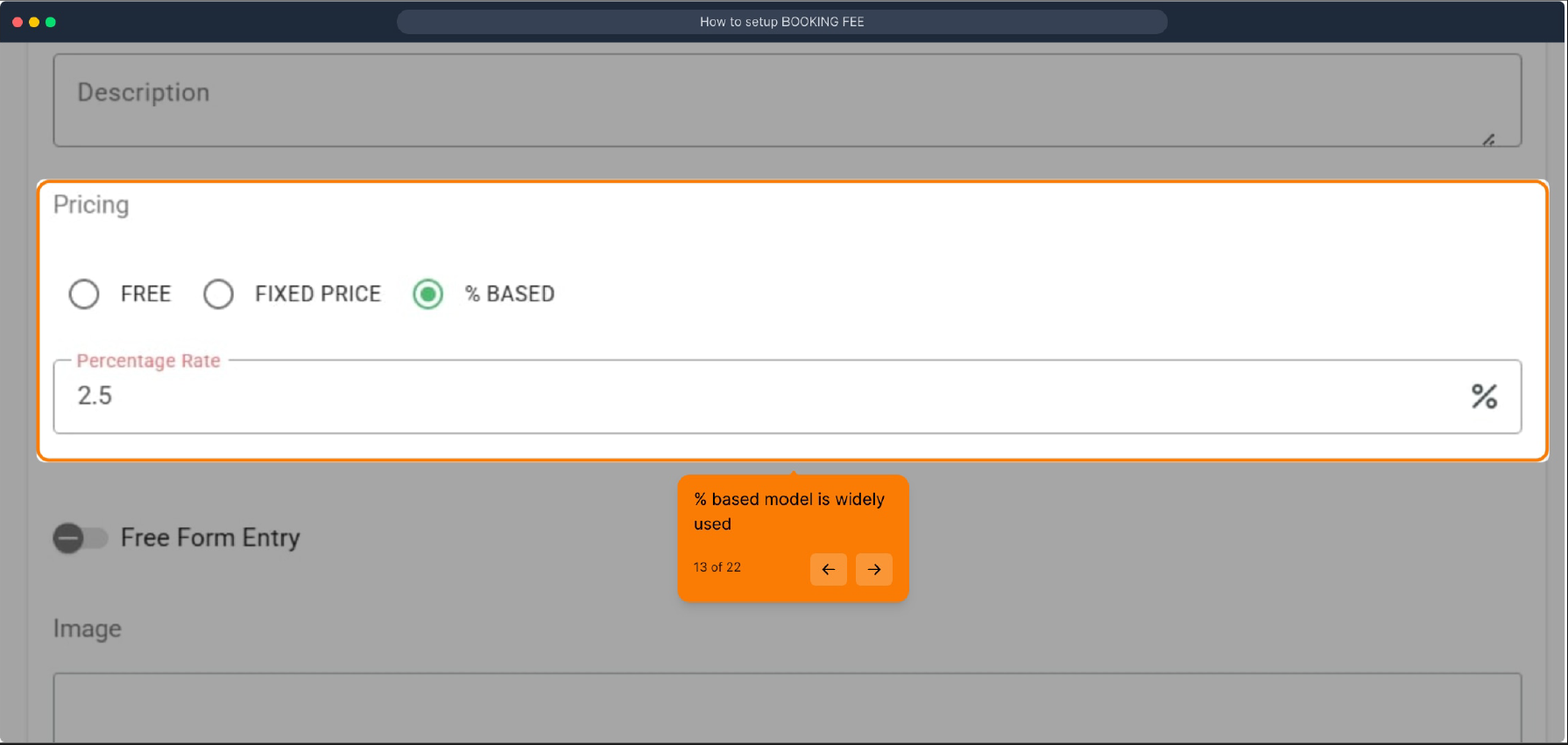
4. Set the fee
Enter the name and description customers will see. Use a clear name such as "Booking fee".
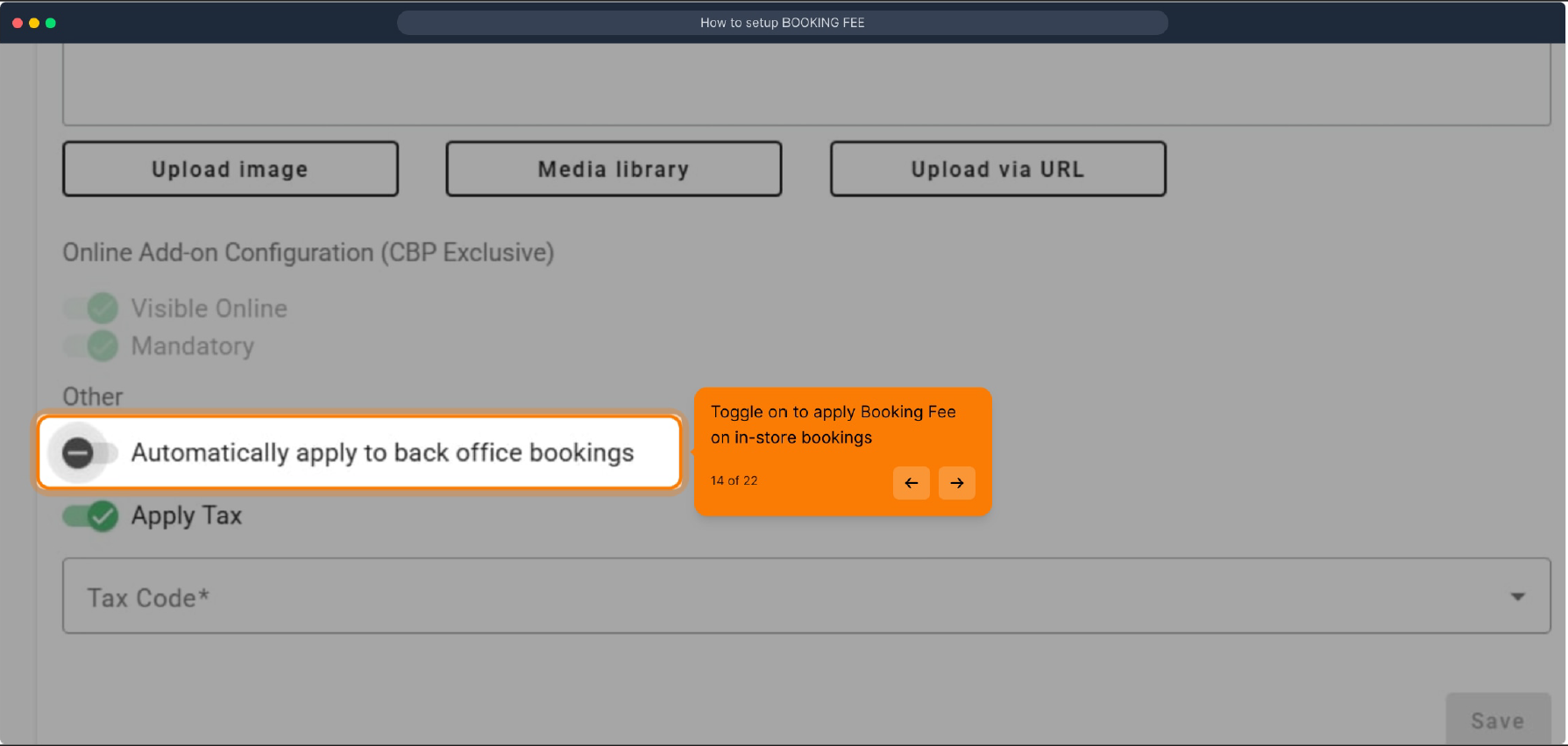
5. Configure back-office bookings
To have the Booking Fee applied automatically to bookings created in the back office, enable "Automatically apply to back office bookings". You can also enable Apply Tax and select the relevant tax code.
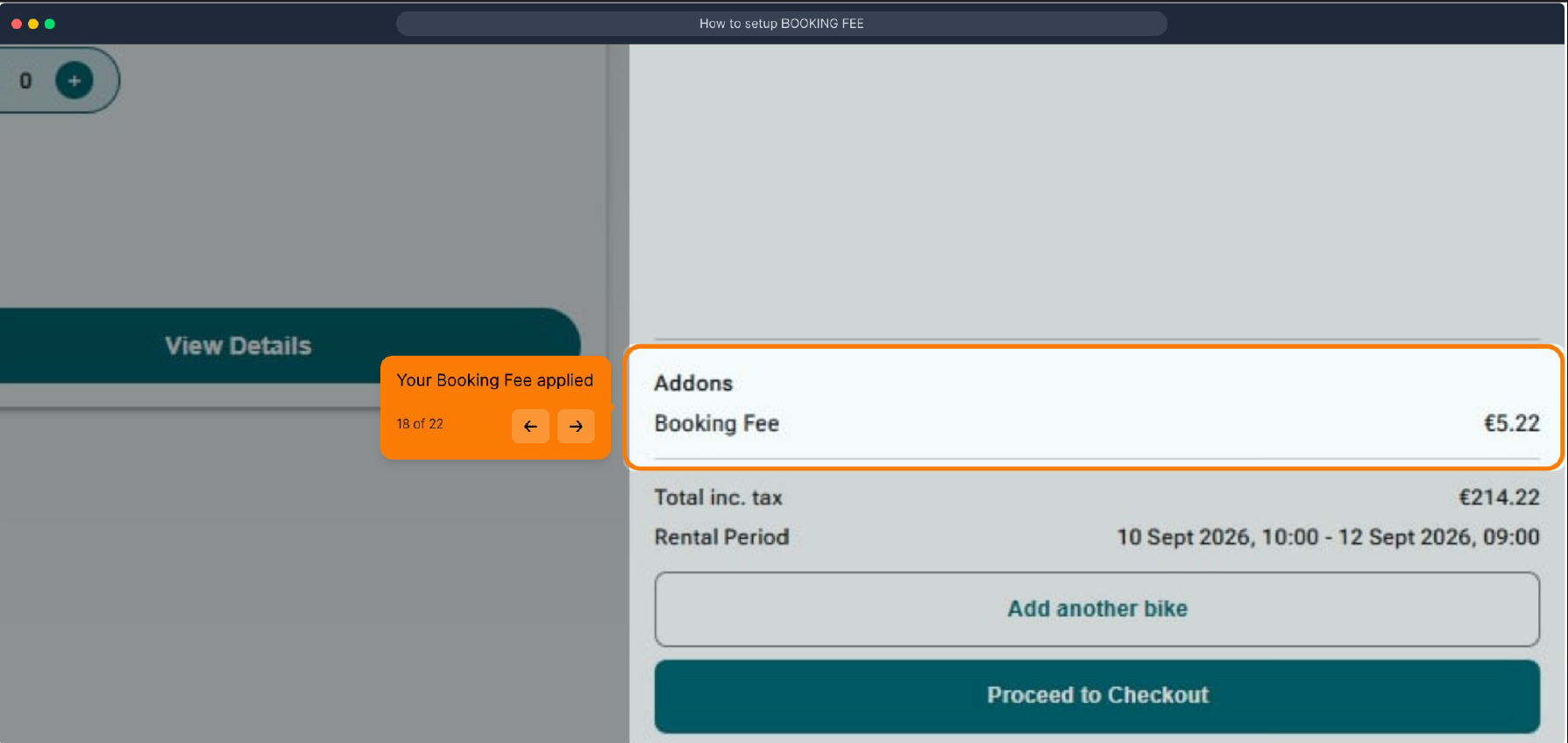
How the Booking Fee appears online
On the Customer Booking Page, the Booking Fee is added to the booking summary before checkout.
Advertised prices: if you charge a booking fee, include it in the prices you show customers (on your website, price lists and in store). In the UK and many other markets, a fee customers can't avoid has to be part of the headline price.
How the Booking Fee works for manual bookings
When creating a reservation in the Planner, the Booking Fee appears in the reservation panel. If automatic application is enabled, it is applied automatically. Otherwise, you can toggle "Apply Booking Fee" on or off for the individual booking.
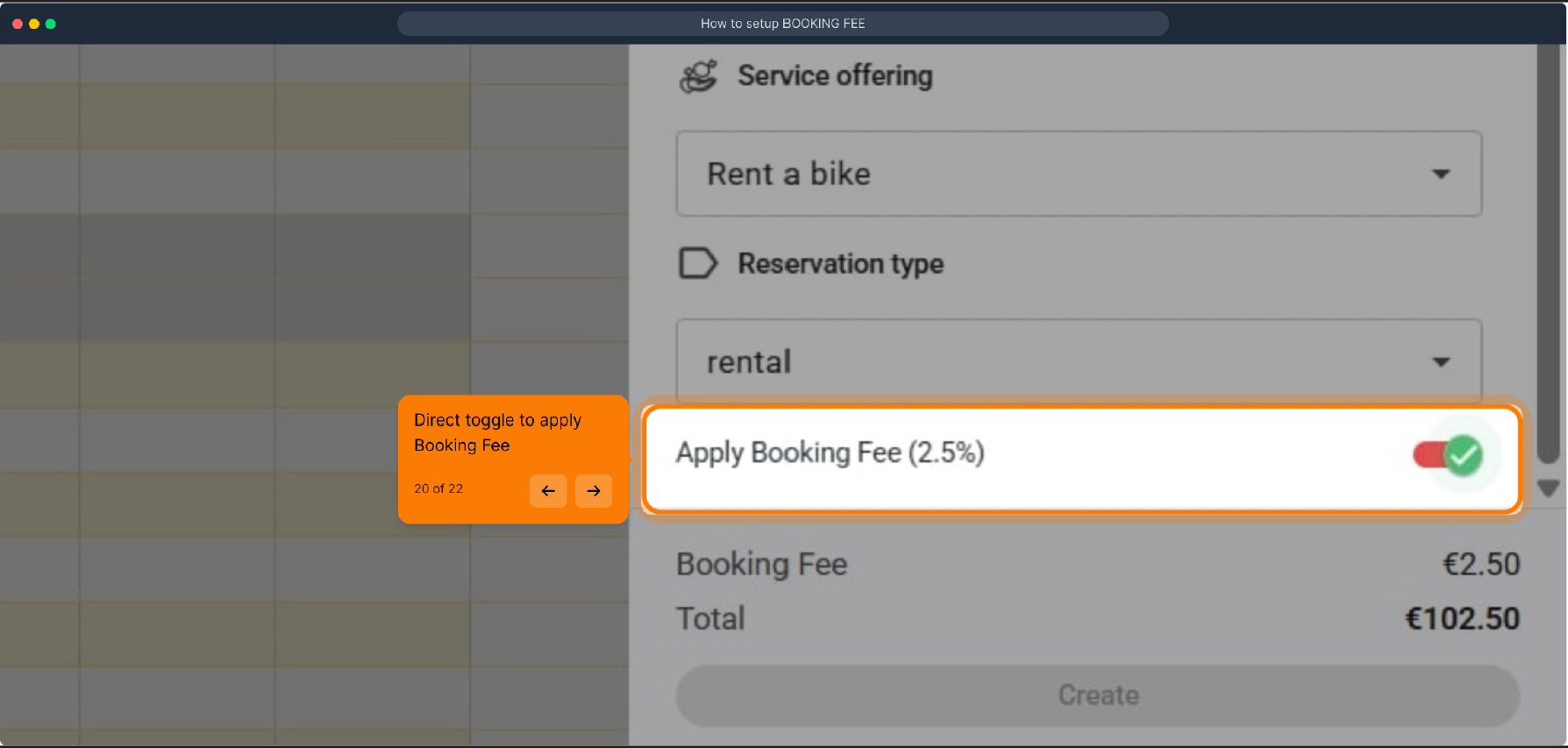
The fee is included in the booking total when it is applied. If you turn the option off, the Booking Fee is removed from that booking.
Quick summary
- Set up the Booking Fee under Settings → Extras & Add-ons.
- Choose the service offerings it applies to.
- Use a percentage-based rate for the fee.
- Display it to customers on the new Customer Booking Page.
- Optionally apply it automatically to back-office/Planner bookings.
Also See
How to add a Gratuity/Booking Tip
Was this article helpful?
That’s Great!
Thank you for your feedback
Sorry! We couldn't be helpful
Thank you for your feedback
Feedback sent
We appreciate your effort and will try to fix the article