Discounts version 2 superceeds the original Discounts many of you may already know. We have broken this page down into sections to help you understand them better.
What does it offer?
- Quick code generation
- Internal notes, for your benefit
- Much more flexible date configurations, including ranges, days of week, exclusions and specific dates
- Quick settings for amount (percentage or fixed)
- Allow usage of code before or only on the specified date of the discount
- Single use, Maximum use, Unlimited use
- Apply to one or more or all offerings
- Minimum cart items, Maximum cart items, Between X cart items
- Allow usage of code online (CBP) or only in your back office (internal)
- Analytical view of your codes uses
How do I get started?
You will automatically have access to the new setup, head to Settings > General > Discount Settings
What about my V1 discounts?
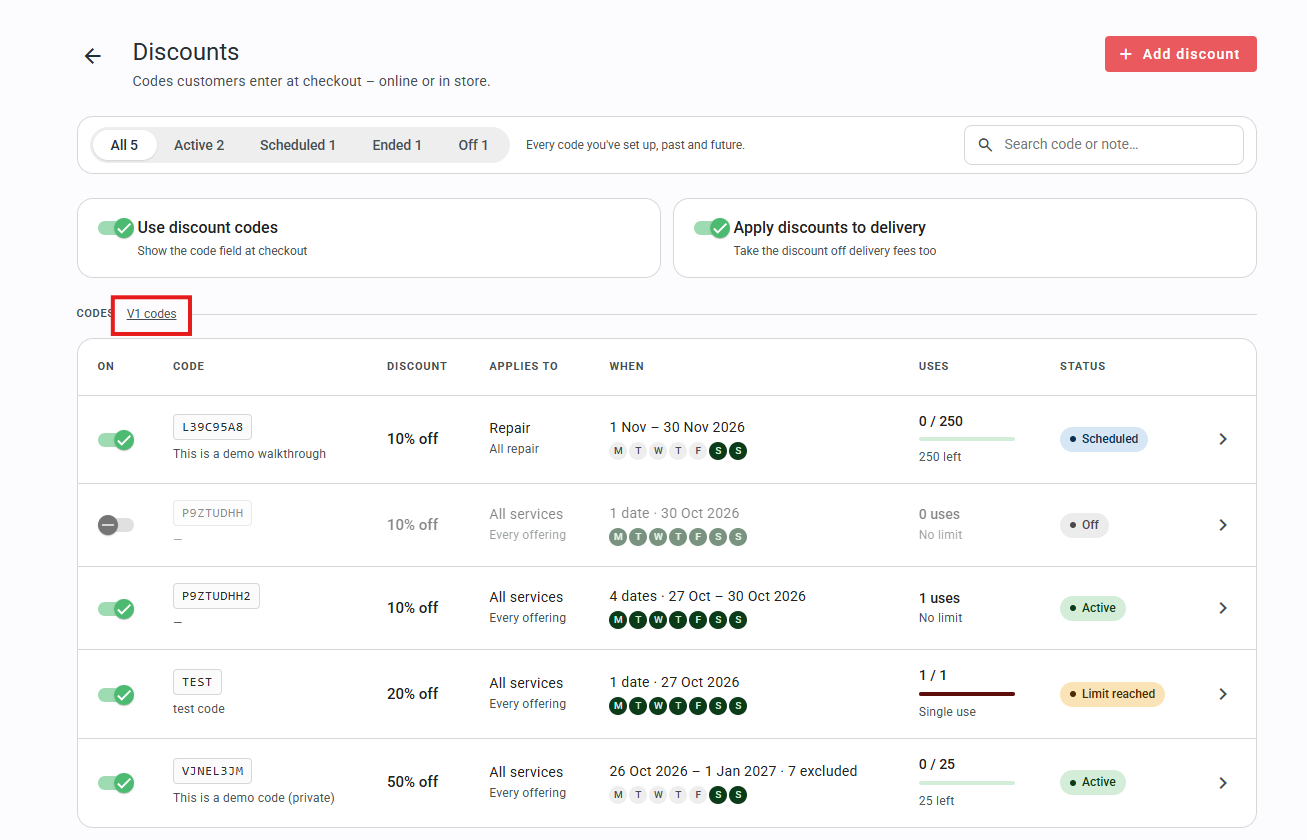
If you had existing V1 discounts they are still usable by customers until they expire or are deleted, you can access the original page via the new Discounts page through the small 'V1 codes' link provided on the page (see red square). You can enable/disable/delete them entirely as you could before from there. It is recommended that you delete these old codes and replace them with the newer codes.
What does each option mean?
Let's run through each section together, so you can understand what they all do.
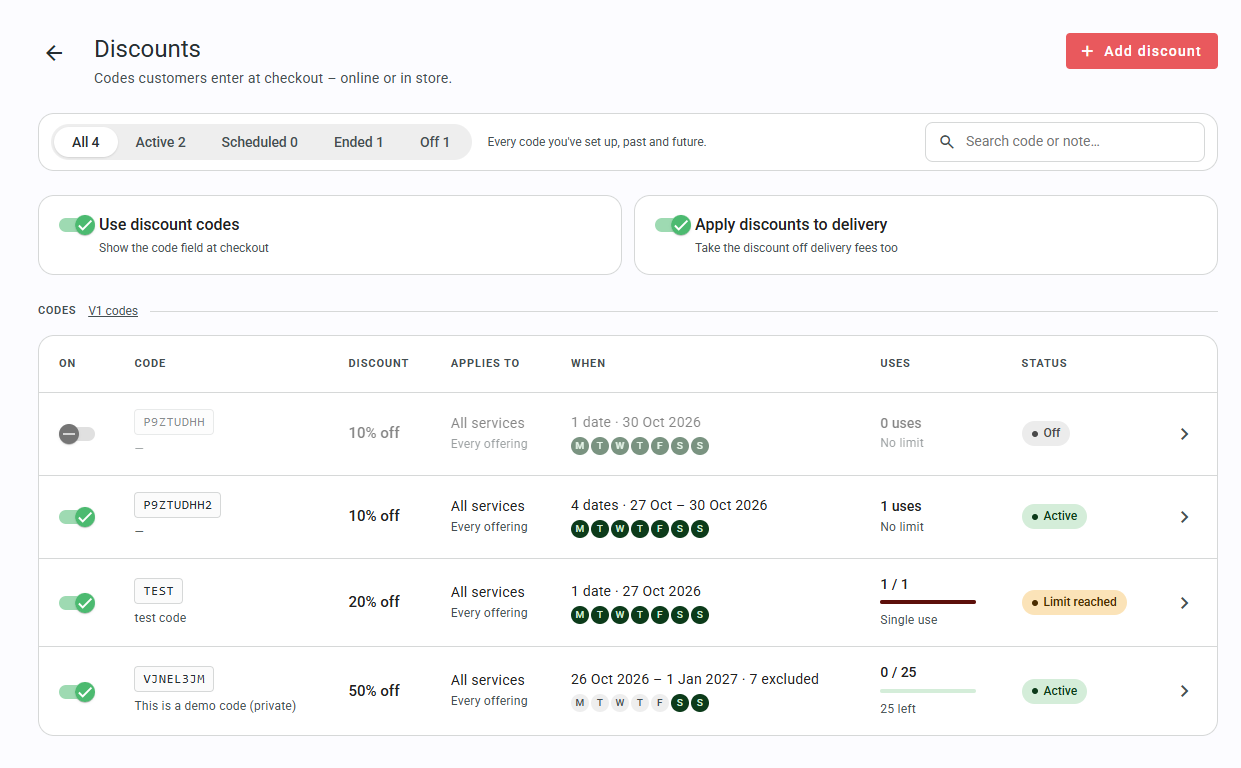
This is the main overview of all your new discount codes, listed with the most important information upfront. You can quickly sort by All, Active, Scheduled (upcoming), Ended and Off (disabled). From here you can also quickly disable or enable a code, see the value discount, see the internal note (if provided), the offerings affected, the date ranges/dates, the uses and a quick colour coded chip to show the status.
The two toggles near the top are the same as the ones that existed on the V1 discounts page, allowing you to entirely toggle discount codes on a store wide level or allowing you to toggle whether discounts apply to delivery fees.
Let's step into creating a new discount, click the red 'Add discount' button on the top right.
The first step that you will see is asking for the code name, feel free to enter whatever you please - no special characters, only alphanumeric codes including - and _ or press the 'generate code button to quickly generate a short, unique code.
You can then leave a note for your own sake, just highlighting what the code is for.
From there, you will also set the 'Type' (Percentage off or Fixed amount) with quick options to apply values.
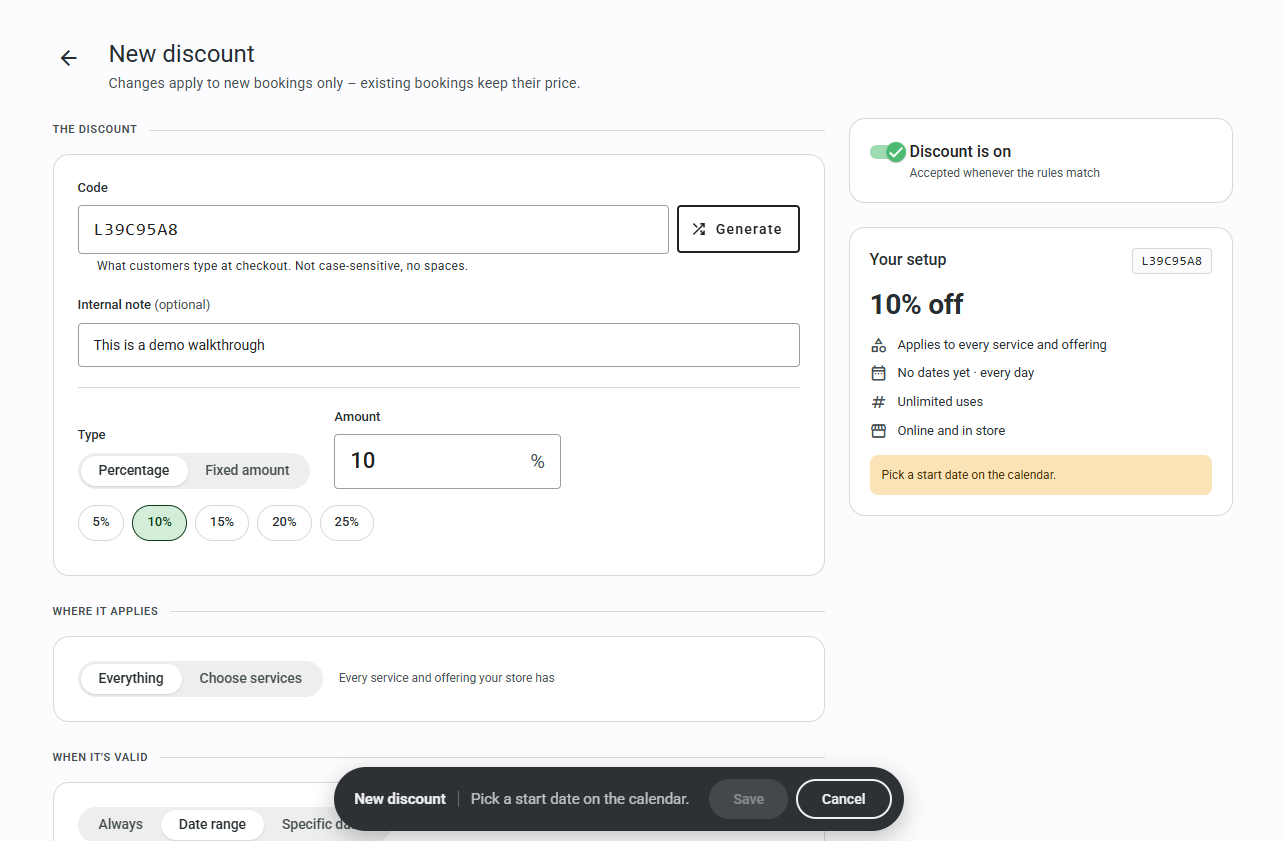
In the above image, you can see I have pressed the 'generate code' button, put a note for myself to remember later and kept the default 10% percentage off. On the right, you will see your current codes setup as you progress.
Let's move down to Where It Applies.
On the where it applies stage, you have the choice of it applying store wide or on a per offering basis.
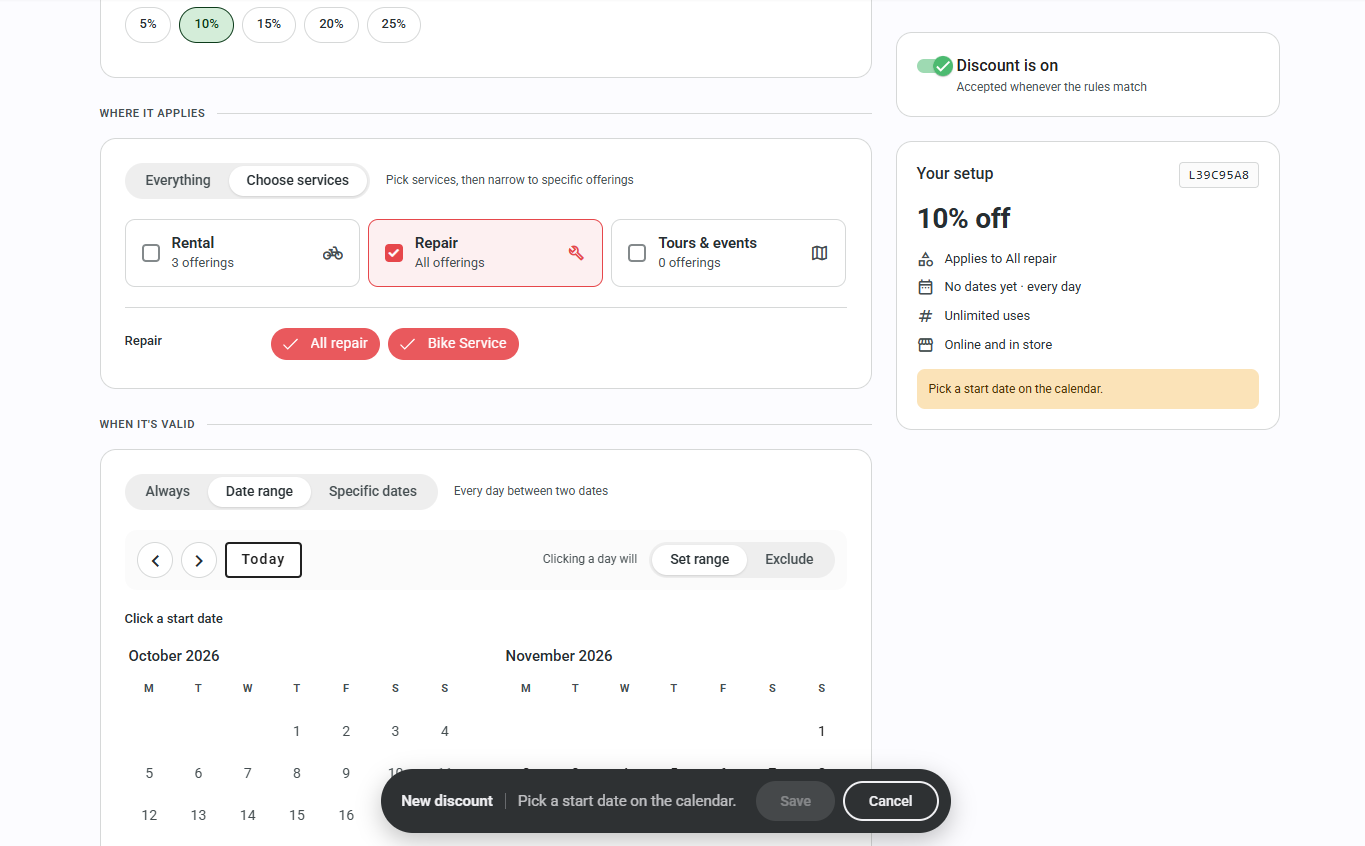
In my case, I only want this code to apply for my Bike Service offering, so I selected 'Repair' and then highlighted Bike Service. If you only had the one, you could just leave this blank and keep 'All Repair' highlighted, as it would apply the code to all of your Repairs offerings
Let's move on to When It's Valid step.
We have multiple options here, let's work top to bottom.
Always - This will run always, infinite. Select this if you want a permanent code.
Date Range - This will allow you to select a specific range that the code will run for. (29th October - 9th November, as na example) You can only have one date range.
Specific Dates - Select individual dates, you choose exactly which days the code will be valid on. You can have multiple set dates.
Below that, is the calendar controls and another toggle for 'Set range (or set dates, depending on your above mode, note that in Always mode there will be no option to set dates manually) and Exclude'
Set range/dates - you will pick the days you want the code active, these will be a deep green for start/finish and a lighter green for the days inbetween (if you selected Date Range)
Exclude - this allows you to individually select days you wish to exclude from the discounts usage pile. This is always a single date selection, but you can have multiple excluded dates.
So, let's say I am running a promotion for all of December, I of course don't want to provide discounts on the busier days so I want all of December minus maybe the 24th, 25th, 26th, 30th and 31st - here's what I will do.
- I will select 'date range' from the top
- I will use the < > buttons to move to December
- While in 'Set range' mode, I will select all of December'
- Once done, I will switch to 'Exclude Mode' and select my days to exclude.
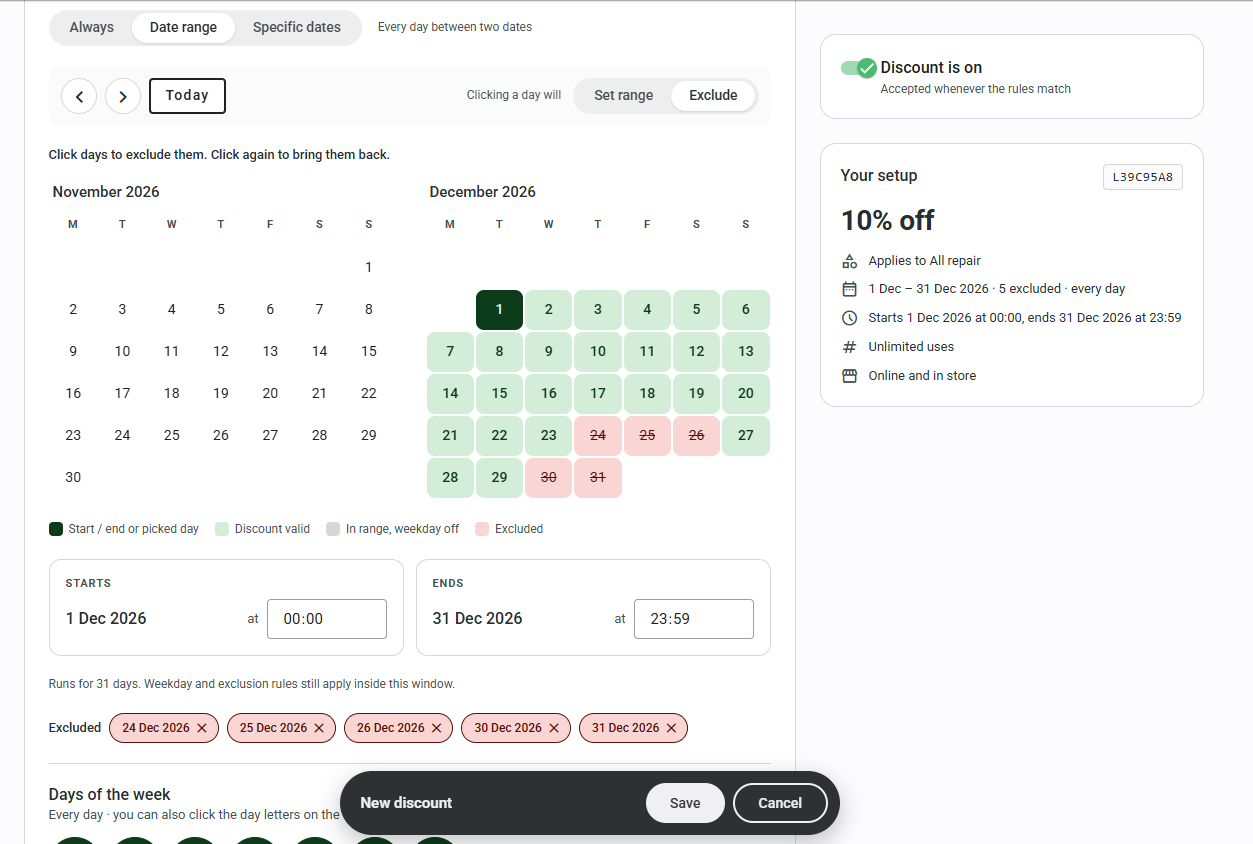
You can see above, the green days are active, the red days are excluded. I can also see a quick list of my excluded days just below the Start/End time boxes, I can remove them from there or by clicking the date again while in Exclude mode.
Let's run another scenario, this time we will be using 'Days of the week' as a helper (seen just below the calendar)
By default, all days are selected. You can choose to exclude certain days - so I wish to run a campaign for weekends in November, now I could manually click every Saturday/Sunday in November, but I have better things to do and so do you - so what do I do?
- I select 'Date Range' mode again
- I use the < > buttons to move to November
- I make sure I am in 'Set Range' mode
- I highlight the entire month of November
- On the 'Days of Week' section, I either manually de-select Monday-Friday, or I hit the quick 'Weekends' button.
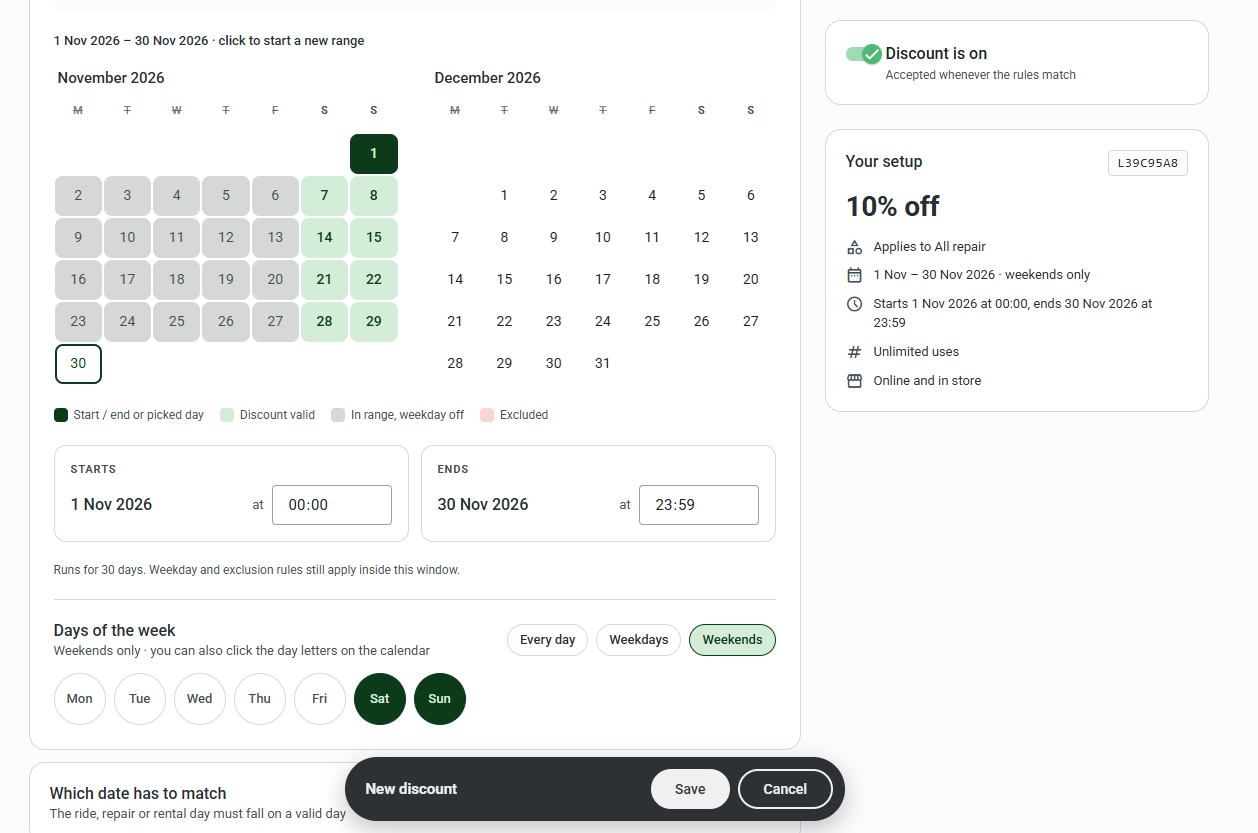
You can see in the image above, I now have the entire month selected but the code is only green on the weekends. Red or grey boxes imply the code is invalid to use for these days.
Let's move on to Which date has to match
There are two options here, Date of Service and Date Booked.
Date of Service - This just means that if the code is active (in our example) in November on weekends, anyone making a booking in advance for one of these days can use the code provided it lands on an active day.
Date Booked - This means that the current date a customer attempts to book must match the date of the discounts validity. It does not allow for advance bookings, perfect for stores that may want a flash promotion.
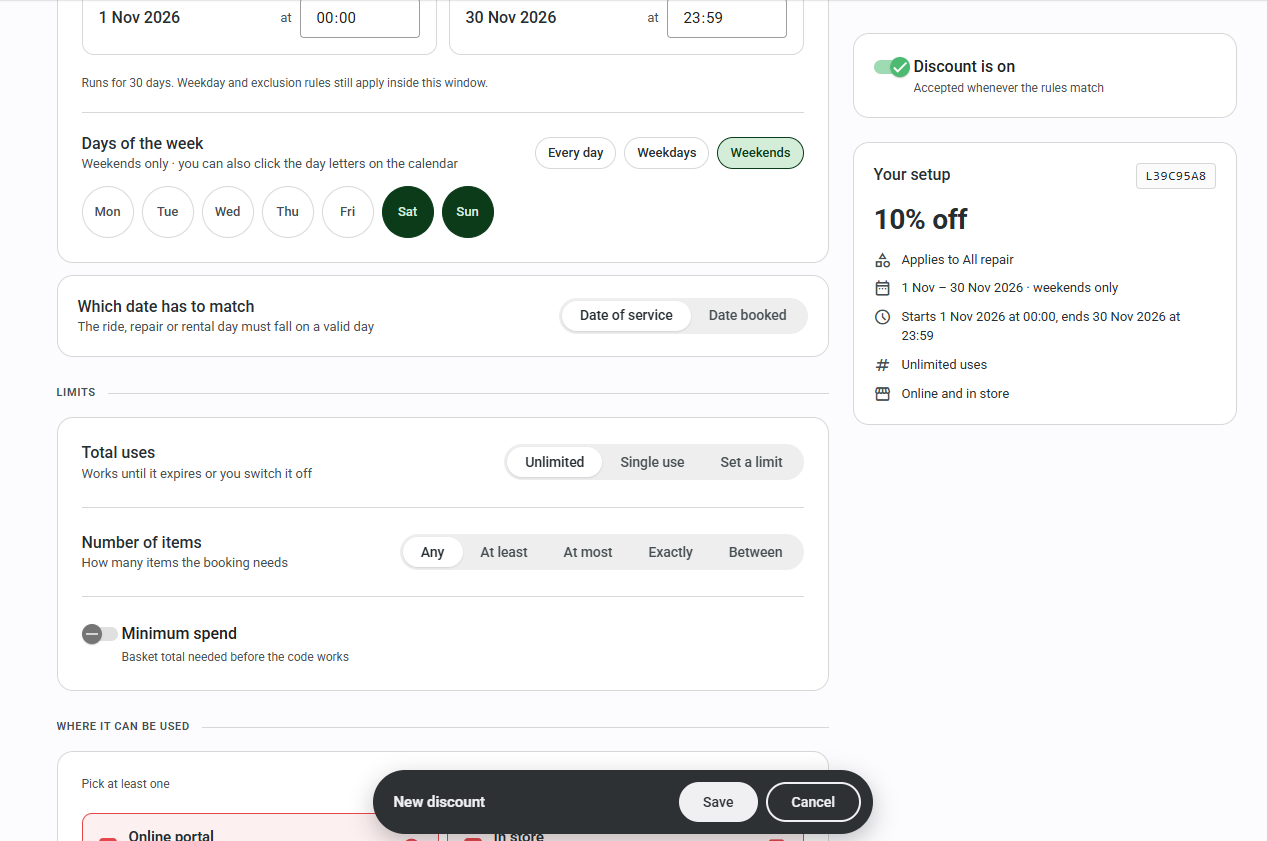
In most cases, unless you are running a flash promotion (or likewise) you will want to stick with 'Date of Service' to allow your customers to use your discount codes for valid dates with an advanced booking.
Let's move on to Limits
There are a few options here, let's go over Total Uses
Unlimited - This just means the code can be used infinitely while it is running.
Single use - This is a special case code that only allows a single use for the ticket, once spent it cannot be re-used. A booking that is cancelled and/or deleted will return that code back into the pool.
Set a limit - This is for if you want a code that is limited to X number of customers, perfect for quick flash sales or promos. Once the code limit has been reached, it will no longer be valid. A booking that is cancelled and/or deleted will return that code back into the pool.
Below that, we have 'Number of items'
You have a few options here, again let's go over them.
Any - any amount of items in the cart is valid.
At least - the customer must have at least X items in their cart for the code to work.
At most - the customer must have no more than X items in their cart for the code to work.
Exactly - the customer must have the exact number of cart items for the code to work
Between - the customer must have between X and X number of cart items for the code to work.
Below that, we have Minimum Spend. This allows you to put a minimum spend requirement on the cart before the discount will kick in.
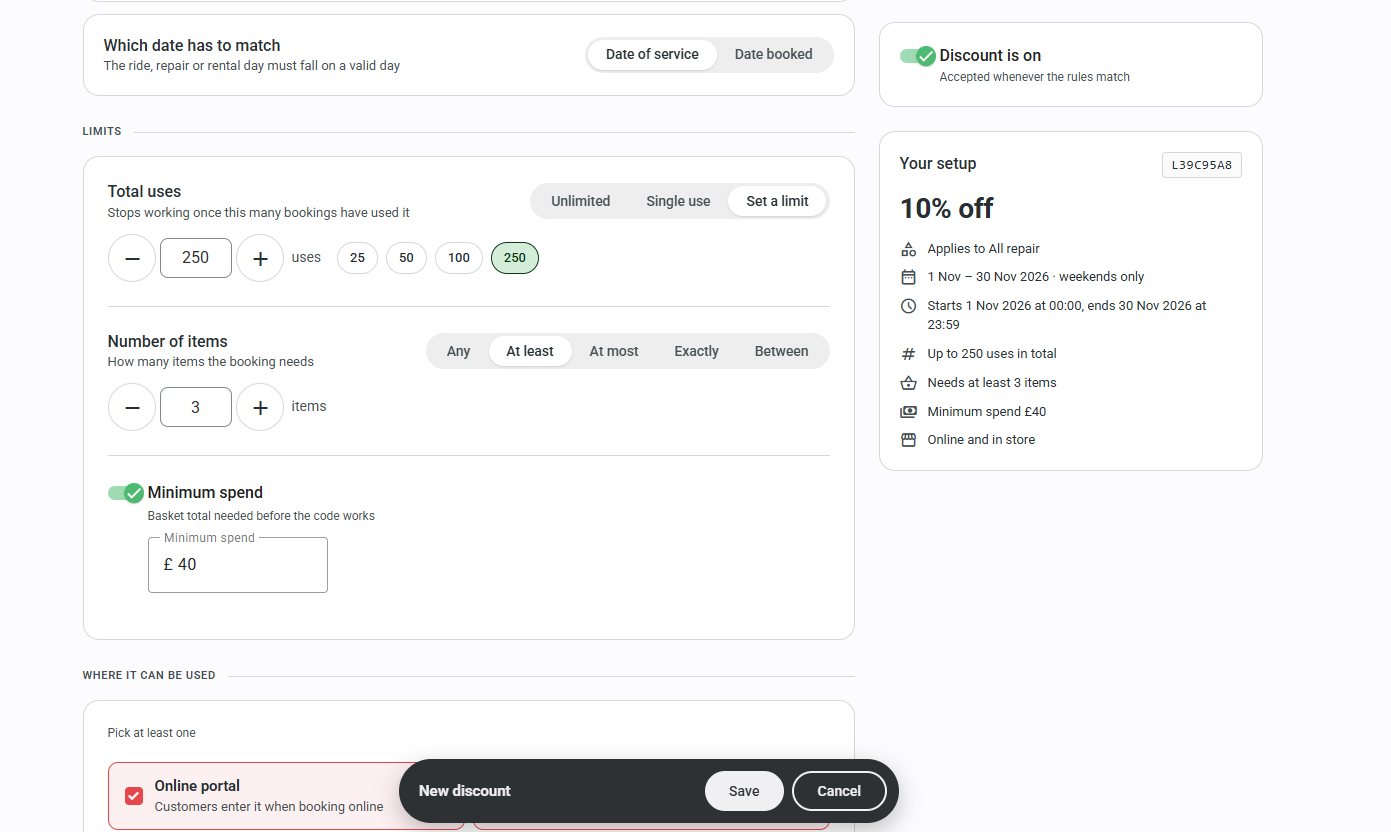
In the above image, I have configured my new code to be capped at 250 uses, with at least 3 cart items and a minimum spend of £100 before the discount code will work.
Now, at the very bottom of the page we have one more option, Where it can be used.
Online Portal - this means it can be used by customers on your online storefront (CBP)
In Store - this means it can be used by staff in your back office to apply to bookings you are making/have already made.
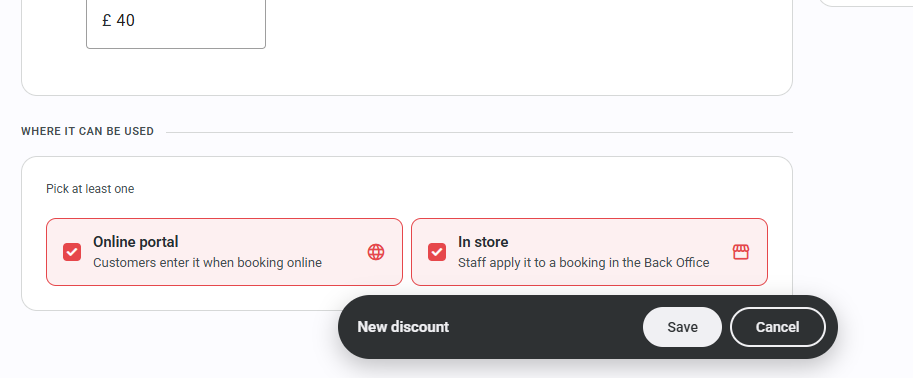
I'll keep both selected, as this is a promo I am running.
Now, I hit save, and the hard work is all done - I have a discount code, scheduled to run in November on weekends only, for 10% off all my Repairs offerings
Was this article helpful?
That’s Great!
Thank you for your feedback
Sorry! We couldn't be helpful
Thank you for your feedback
Feedback sent
We appreciate your effort and will try to fix the article