What if you want to reorganize your inventory?
Maybe you initially set things up quickly and now want to make changes to your Categories, Product Families, or other organizational structures.
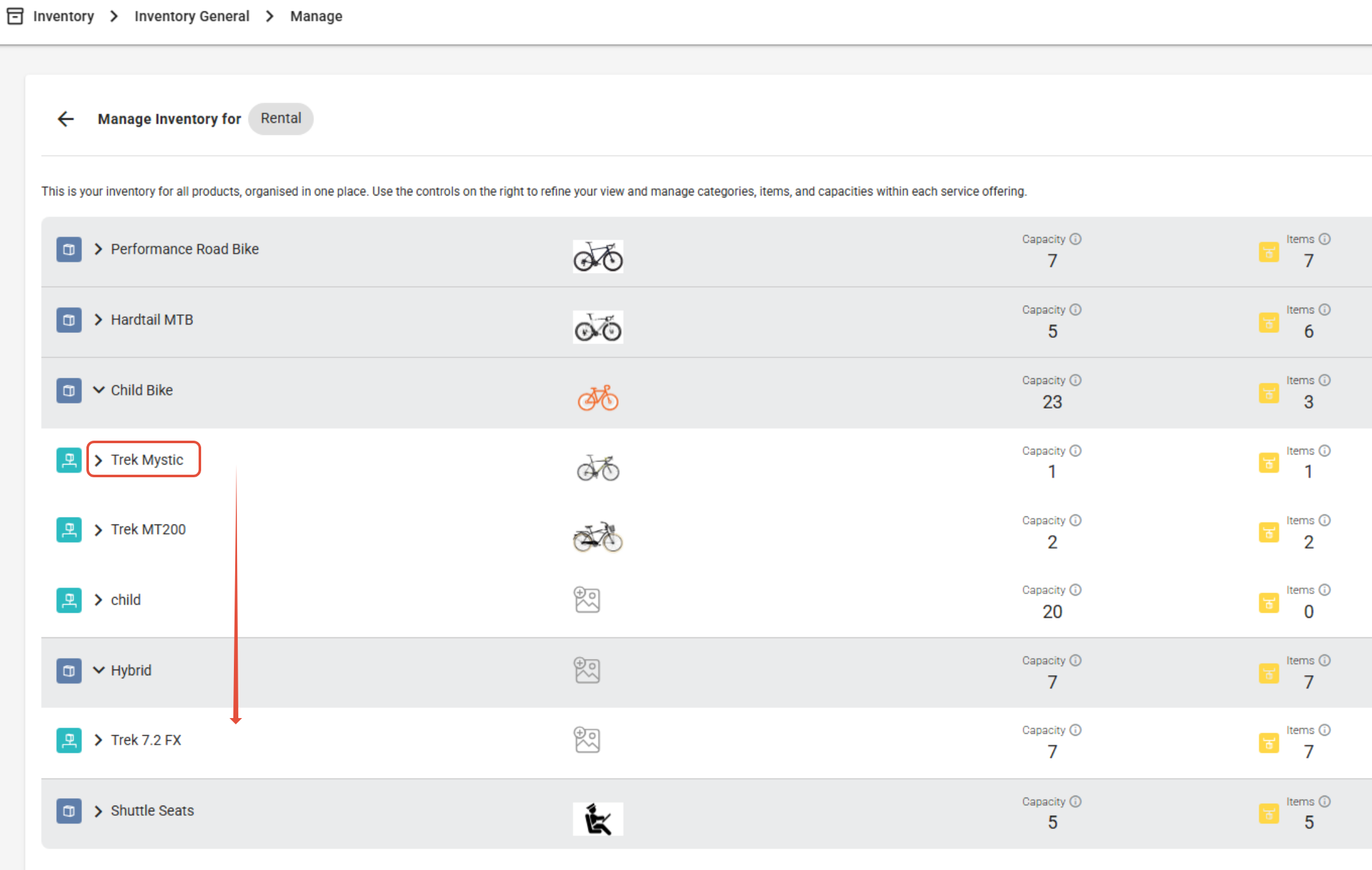
You can easily reorganize your inventory. Here’s how:
Moving a PF (product family) to a new Category
Moving a PL (product line) to a new PF
What if you made a mistake with the size of one of your items?
No problem—you can update a PL's size. However, proceed with caution.
For example, if you sell a bike and later buy a new one in a different size, do not simply change the size of the existing item. Instead, create a new item for the new size.
Changing the size of an existing item could cause issues with old reservations or bookings linked to the original size. To avoid potential problems, it’s best to treat the new size as a separate item in your inventory.
What about simply changing the ID of your items?
No problem—changing the ID of your items is easy and doesn’t cause any issues.
What about changing the order of your categories, PFs or PLs?
You can drag categories, product families and product lines up or down once you switch on Enable dragging, under Actions in the side panel of the Inventory page. Individual items within a product line can't be reordered. See how to change the order.
However, please note that dragging only affects the order—it doesn’t change the underlying structure. For more significant changes to the structure (such as reorganizing categories or product families), refer to the other features listed on this page.
Was this article helpful?
That’s Great!
Thank you for your feedback
Sorry! We couldn't be helpful
Thank you for your feedback
Feedback sent
We appreciate your effort and will try to fix the article