Most stores build up more than one record for the same person. Someone books online in May, books again in August, and because online bookings don't ask customers to log in, each booking creates a fresh customer record. Self-registration on a kiosk works the same way — every registration adds a record. Over a few seasons that leaves the same rider spread across several records: their booking history split up, their signed waiver on one record and their card on another.
Merging joins those records back into one. You choose the record to keep, and everything attached to the others moves onto it.
Who can merge
Merging is a separate permission from ordinary customer editing, because it's more destructive than deleting a customer — a bad merge fuses two people's histories together.
- Go to Settings → Admin → Users and open the staff member.
- Tick Merge Customers — can join duplicate customer records together.
Staff without this permission won't see the duplicates banner, the review list or the Merge action at all.
Finding duplicates
When your store has duplicates, a banner appears at the top of your customers list: "Review duplicates".
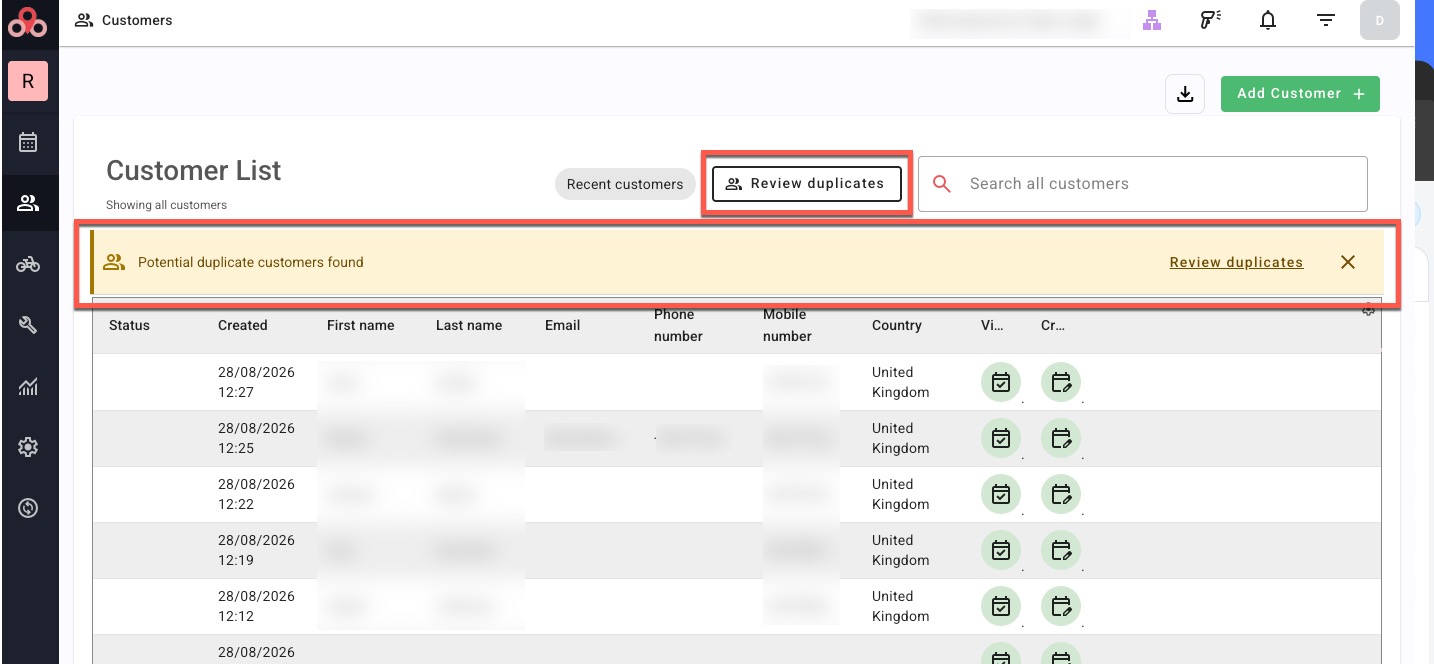
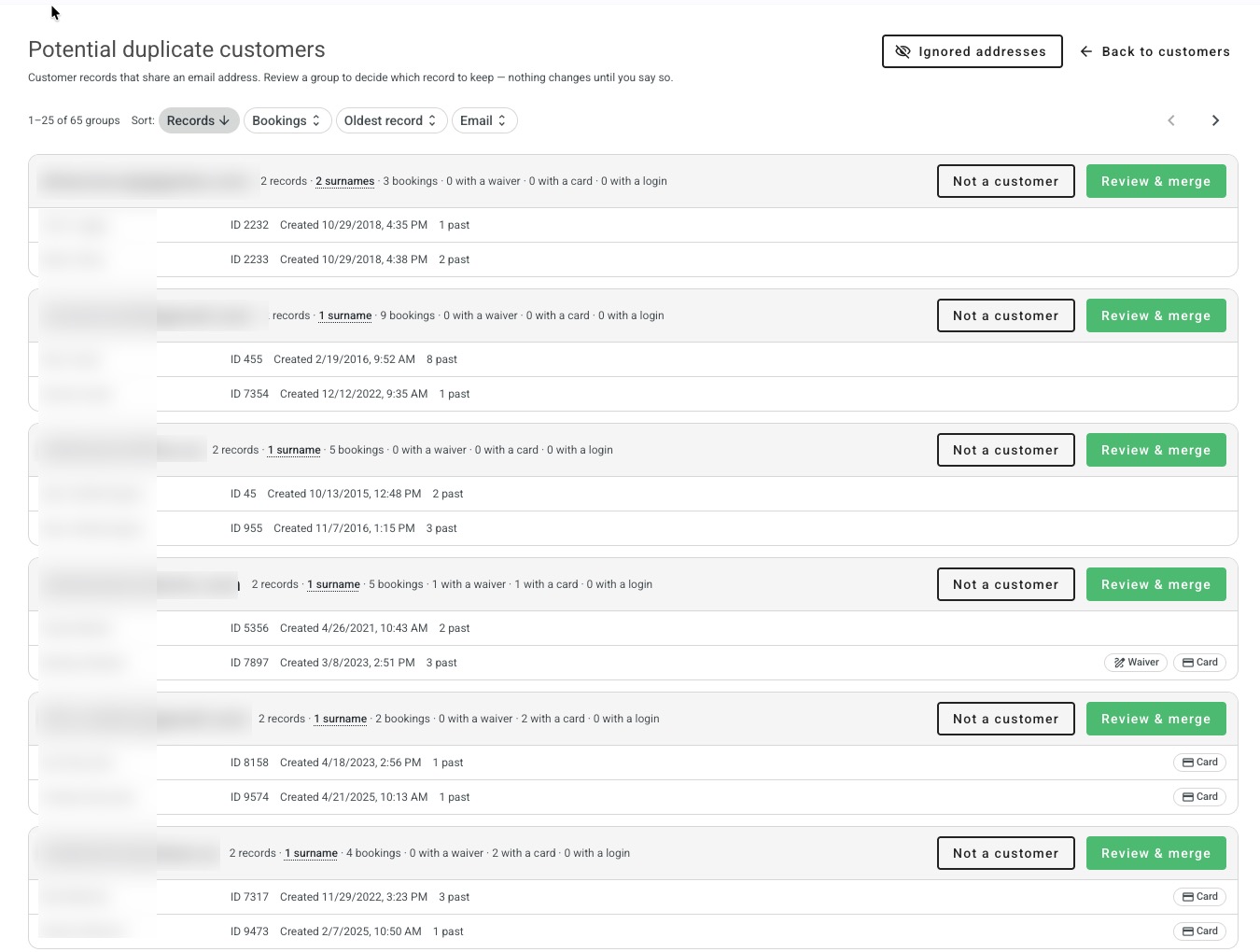
Click Review duplicates to open the review list. Each group shows the shared email address and every record under it, with the detail you need to decide which one to keep:
- The customer's name and record ID.
- When the record was created.
- How many past bookings it holds, and how many upcoming.
- Waiver, Card and Login markers, showing which record holds a signed waiver, a card on file, or a bike.rent login.
- "N surnames" — how many different surnames appear in the group. One surname across ten records is usually one person entered ten times; ten surnames across ten records is usually ten different people sharing an address.
You can sort the list by number of records, bookings, oldest record or email, and work through it a page at a time. There's no need to clear it in one sitting.
Dismissing the banner hides it for the rest of your browser session. It comes back next time you sign in — there is no permanent dismissal.
Duplicates are found by matching email addresses, so customer records with no email address aren't included. You can still merge those manually — see Merging customers the list didn't find below.
Addresses that aren't a person
Some addresses aren't a customer at all — [email protected], a placeholder typed at the counter, or your own shop address used for walk-ins. These pull dozens of unrelated people into a single group.
Use Ignored addresses on the review list to tell BRM that an address isn't an identity. Groups on that address stop appearing in the review list. You can review the list or undo any entry from the same place.
Ignoring an address doesn't change or delete any customer record. It only stops that address being treated as a way to identify someone.
Use this for addresses genuinely shared by more than one person — a couple or a family booking on one address. Don't merge those records: ignore the address instead, so each person keeps their own record.
Merging a group
- Click Review & merge on the group.
- In the Keep column, choose the record you want to keep. Everything else merges into this one. The record with the most history or the signed waiver is usually the sensible choice.
- For each of the other records, choose Merge into primary or Do not merge. Every record starts on Do not merge, so nothing happens to a record you don't explicitly pick.
- Click Continue. You'll see a confirmation screen setting out exactly what's about to happen.
- Check it, then click Merge customers.
If any upcoming bookings are going to move, you'll be asked to tick I understand these bookings will move before you can continue.
Larger merges keep running in the background after the dialog closes — you'll see "Merging 2 customer records. This can take a few moments to finish." A customer with a lot of bookings can take a short while to finish moving.
What moves across
Everything attached to the merged-away records moves onto the record you keep:
- Bookings, both past and upcoming.
- Signed waivers.
- Payment history and payment links.
- Staff notes and status markers such as VIP or Blacklisted.
- Custom field answers.
- The customer's event and activity history.
The merged-away records are retired rather than deleted, and old links to them lead to the record you kept — so a bookmarked booking or an emailed link still works.
What happens to conflicting details
Where two records disagree — different phone numbers, different addresses — the details on the record you keep win. Anything the kept record leaves blank is filled in from the records being merged, so you gain the missing phone number without losing the one you had.
The confirmation screen lists this before you commit, under What happens to the details: what's being filled in, and what's not kept. If the records hold the same details, it'll tell you nothing is being overwritten.
Because of this, picking the "wrong" record to keep costs very little — you'd lose some contact detail, not the customer's history.
When a record can't be merged away
Some records are blocked from being merged away. A blocked record can still be the one you keep — the block only stops it being merged into another record.
- "There is still money owed on one of this record's bookings. Settle it before merging this record away, or keep this record instead."
- "A card is still held against one of this record's bookings. Release it before merging this record away, or keep this record instead."
- "This customer's personal data has been erased, so their history cannot be moved." — this applies to records erased under a data deletion request, and it's permanent.
- "This record is already part of a merge that is still running." — wait for it to finish and try again.
One block applies to the whole group rather than a single record: "Both records have bike.rent logins. Contact support to decide which account to keep." When two records each have their own customer login, merging them would leave a real account pointing at nothing. Get in touch and we'll sort out which account should stay.
Cards on file
If more than one of the records has a card saved, you'll see a warning on the confirmation screen. Only the kept record's card stays chargeable — cards saved against the other records can't be charged after the merge. If the card you rely on is on a different record, keep that record instead.
Catching duplicates as they happen
When you add or edit a customer using an email address that already belongs to someone in your store, BRM tells you before you create another record. You'll see the existing records with their IDs, when they were added, and whether they hold a waiver or a card.
- When adding a customer, choose Use this customer to book against the record you already have, or Create a new customer anyway if these really are different people — a family sharing one email address, for example.
- When editing a customer, choose Keep them separate, or Merge these records to deal with it there and then.
Nothing is joined automatically. If you'd rather not decide at the counter, leave it — the records will be waiting under Review duplicates whenever you want to deal with them.
Will they come back?
Yes — merging tidies up the records you have, it doesn't stop new ones appearing. A customer who books online again, or registers again on a kiosk, still creates a new record, because neither route asks them to log in or identify themselves against an existing customer.
So treat the review list as something you visit now and then rather than a job you finish once. A few minutes every couple of weeks keeps it short, and the list is designed for that: it sorts by size, it pages, and it remembers nothing you have to undo.
If a particular address keeps generating groups that aren't really duplicates — a family, a club, a hotel desk — add it under Ignored addresses rather than merging those records.
If you merge the wrong records
A completed merge can be reversed by our support team, but not from Back Office. If you realise you've merged the wrong records, get in touch as soon as you notice and give us the customer's name and the record IDs shown in the merge screen. The sooner we hear, the cleaner the reversal.
Good to know
- Marketing consent and language preference are treated differently from other details — BRM takes the most recent answer the customer gave, on whichever record they gave it. Someone who opted out on their latest booking stays opted out, even if you keep an older record that says otherwise.
- Records with no email address never appear in the review list, but can still be merged from the customers list.
- If you've already exported customers elsewhere — a mailing list, a reporting tool — that copy still holds the old records. Merging in BRM doesn't reach back into it.
- Merging doesn't delete anything you'd need for your accounts. Bookings, payments and invoices all move onto the kept record.
Was this article helpful?
That’s Great!
Thank you for your feedback
Sorry! We couldn't be helpful
Thank you for your feedback
Feedback sent
We appreciate your effort and will try to fix the article