The Lifetime tab on an item's detail page brings together how much a bike (or any item) has been used, what it has earned, and how it's been looked after — all in one place, so you don't have to cross-reference the calendar, your reports and the maintenance log.
Everything on the tab is worked out automatically from your existing bookings, maintenance records and item details. There's nothing to fill in, and all dates and totals are calculated in your store's own timezone.
Where to find it
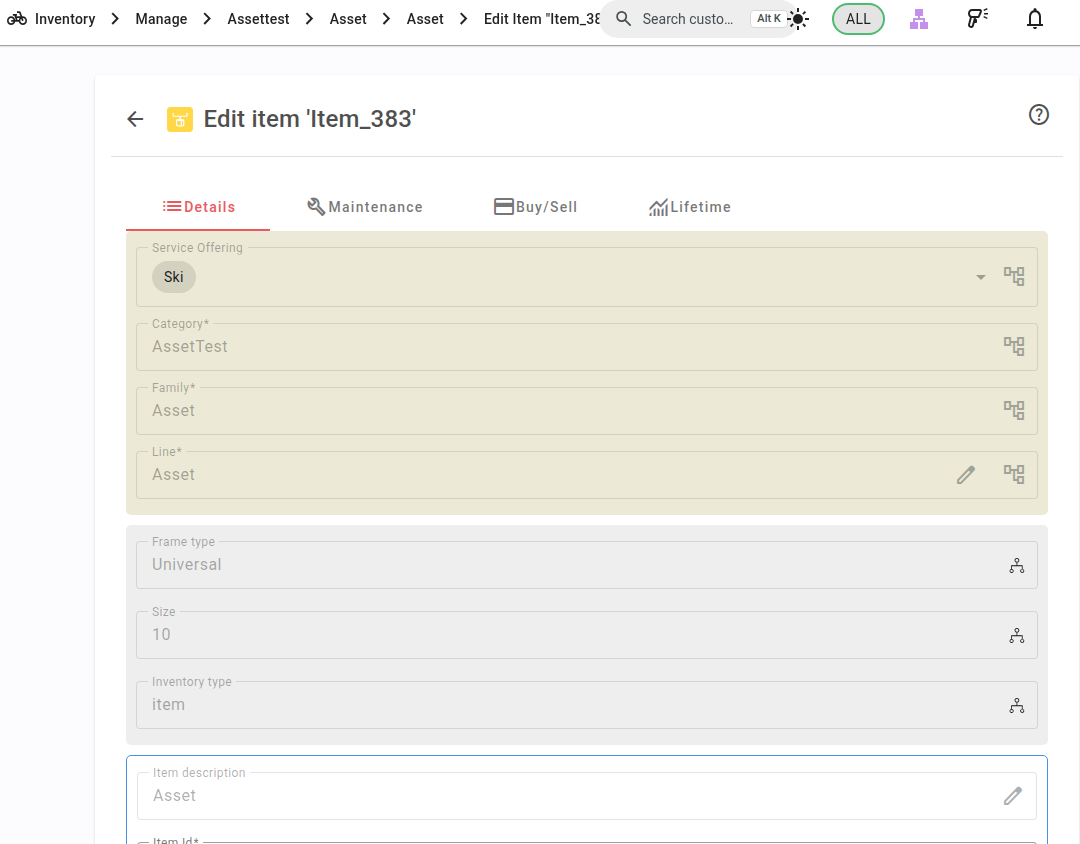
Open any item, then choose the Lifetime tab (next to Details, Maintenance and Buy-Sell).
What it shows
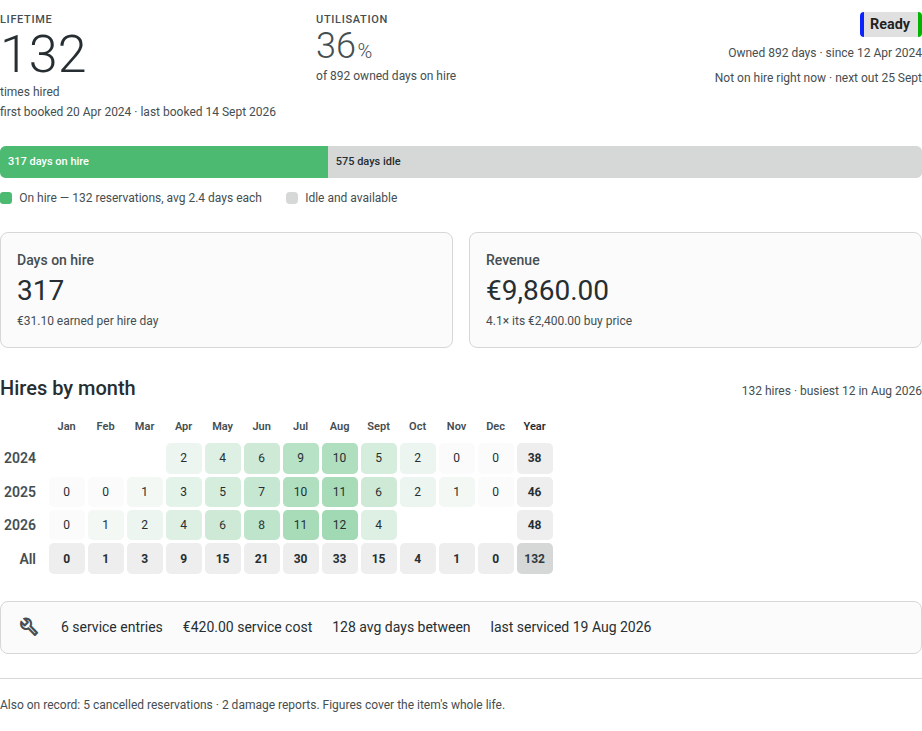
- Usage — the total number of times the item has been hired, its most recent hire, its next upcoming hire, and whether it's out on hire right now.
- Utilisation — days on hire versus idle, a lifetime utilisation percentage, and the average length of a hire.
- Hires by month — a heatmap across the item's whole life. Read down a column to see how many times it went out in, say, every March; the totals row and column give you the yearly and monthly counts at a glance.
- Economics — total revenue, the original buy price, how many times over the item has paid back its buy price, and revenue per day on hire. These financial figures are visible to store managers only.
- Service — number of service entries, total spent on servicing, the average gap between services, when it was last serviced, and how many damage reports it has.
- Ownership — how long you've owned it, and its buy date.
How “times hired” is counted
To keep every figure consistent, “hired” means confirmed customer hires only. Cancelled bookings, quotes that were never accepted, and workshop/maintenance bookings are all left out — so the numbers reflect real customer use. A small footnote shows the cancelled count for context.
If a figure is blank
An item that has never been hired says so clearly, rather than showing a wall of zeros. Any single figure with no data behind it is simply hidden. If you don't hold a manager role, the financial figures won't appear for you.
Was this article helpful?
That’s Great!
Thank you for your feedback
Sorry! We couldn't be helpful
Thank you for your feedback
Feedback sent
We appreciate your effort and will try to fix the article