In the Planner's product view, open the Categories sheet, tick the categories you want to see every time, and click Save setup. From then on the planner opens on this store with those categories already selected, on the device you saved them on. You can update, return to, or clear the saved setup from the same sheet at any time.
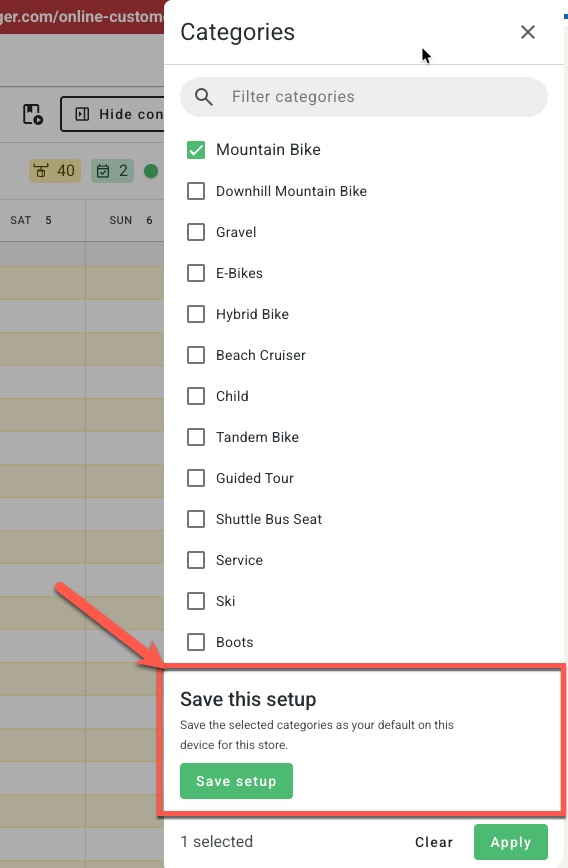
What "default categories" does
In the product view the planner shows one row per item, grouped by category, so most stores only want to see a handful of categories at a time (for example "Adult MTB" and "E-bikes", not helmets and child seats). Rather than re-selecting them every morning, you can save the selection as your default. When the planner loads it restores that selection automatically before it fetches reservations, so you land straight on the rows you care about.
The saved setup is stored on this device, for this store. It is not shared with colleagues and does not follow you to another computer or browser — each device (and each store, if you use Switch Store) has its own saved setup.
Saving your default categories
- Open the Planner and make sure you are in the product view (the Categories filter only appears in this view).
- Open the Categories sheet. Either click Show Controls (top right of the planner) and choose Categories, or click the categories chip in the filter bar above the calendar.
- Tick the categories you want. Use the Filter categories box at the top of the sheet to find one quickly. The selected categories appear as chips above the calendar as you go.
- At the bottom of the sheet, under Save this setup, click Save setup. (The button is greyed out until at least one category is selected.)
- Click Apply to close the sheet.
Next time you open the Planner on this device, those categories are selected for you.
Changing the saved setup
Once a setup is saved, the button reads Update saved setup. Select the categories you now want as your default and click it — the new selection replaces the old one.
Getting back to your default after filtering
You can still change the selected categories freely during the day — removing a chip, ticking extra categories, or using Clear — without affecting the saved setup. Whenever the current selection differs from what you saved, a Return to default button appears at the bottom of the Categories sheet. Click it to restore your saved categories in one go. Your current date range and activity filter are kept.
Removing the saved setup
Open the Categories sheet and click Clear saved setup. This only forgets the default — it does not change what is currently selected on screen. The planner then opens with no categories pre-selected, as it did before you saved one.
Good to know
- Per device, per store. Saved categories live in the browser on the computer where you saved them. Colleagues, other computers and other browsers are not affected. The same applies to the other planner display preferences (row size, lozenge details and so on) — only column widths and hidden columns are saved to your BRM account.
- Deleted or archived categories are dropped automatically. If a category in your saved setup no longer exists in the store, it is quietly removed from the setup the next time the planner loads. If none of the saved categories exist any more, the saved setup is cleared.
- "Reset to defaults" in the display settings does not touch your saved categories. That reset only affects display preferences; use Clear saved setup in the Categories sheet if you want to forget the categories too.
- Saved views are separate. A saved default view (from the planner configuration menu) remembers layout settings such as row size, time scale and columns; the category setup is saved and restored independently by the Categories sheet.
- Clearing your browser data (site data / cookies for BRM) removes the saved setup, so you will need to save it again.
See also:
Two views, product & reservation
Find individual Items (e.g. bikes)
Was this article helpful?
That’s Great!
Thank you for your feedback
Sorry! We couldn't be helpful
Thank you for your feedback
Feedback sent
We appreciate your effort and will try to fix the article