Who this is for: store staff setting up online repair bookings for the first time. It assumes Repairs is already switched on for your store. If it isn't, find Repairs under Services in the side menu and click Activate.
Once Repairs is enabled, three things make a repair bookable online. Get all three in place and the offering goes live on your Customer Booking Page:
- a repair service offering — what the customer picks;
- a product line with a per-day capacity — how many repairs you'll take in on a given day;
- mechanic hours — the days and times you accept drop-offs.
The storefront works out availability from the last two: a day is bookable only when it's within your mechanic hours and under your capacity for that day.
Before you start: set your notification recipient
When a customer approves or declines a repair quote, BRM emails you — but only if a recipient is set. Go to Settings > Notifications and make sure your shop notification address is filled in: Shop notification addresses under Sender details on the new Notifications page, or Booking notification email(s) under Who on the previous pages. If it's blank, the approve/decline notifications have nowhere to go and you'll never see them. Set this once, first.
Step 1 — Create the repair service offering
Go to Settings > General > Service Offering Management, find Repairs, and Add an offering (or edit an existing one).
- The Name you type generates the offering's web address and can't be changed afterwards, so choose it carefully — customers see it on your booking page. ("Gold service" becomes
gold-service.) - Set the customer-facing options: locations, and how the customer receives the repair (see Setting collection & delivery per offering).
- If you're not ready to show it to customers yet, switch on Internal only — staff can still book it in the Back Office, but it's hidden from the booking page (see Hiding a service offering from customers (Internal only)).
- Save.
Step 2 — Set the per-day capacity
A repair is sold as a product line with a quantity but no individual bikes attached — a priced item on the invoice, not a physical asset. This line is where you set how many repairs you'll take on per day.
- Go to Inventory, open the repair's product line (or add one) and Edit it.
- Assign it to the repair service offering from Step 1, using the dropdown at the top of the form.
- Set Quantity to your per-day capacity — how many of this repair your workshop will take in on a single drop-off day (for example
4).
Quantity is a per-day cap, not a stock count. With Quantity 4, up to four of these repairs can be dropped off on the same day; once the day is full it greys out on the booking page. A Quantity of 0 (or unset) means the line takes no bookings at all — so if repairs aren't showing as bookable, check this first.
Change the Quantity and the booking calendar follows on the next page load.
Step 3 — Set the repair price
On the same product line, set the Price field to the repair's flat price (for example 80.00).
- The customer is charged exactly this amount, whatever drop-off day they pick, and the booking-page card shows it exactly (no "From …" hedge).
- The quote, the booking and the invoice all agree on it.
This flat price is separate from the price you may later quote for the actual work — see Working a repair through to completion. If you leave Price blank, the line falls back to its Price Group, which is designed for time-based rentals and can show a misleading "From" price on a repair — so setting the Price field is strongly recommended for repairs.
Step 4 — Set your mechanic hours
Edit the repair offering again and open the Scheduling card (it appears for repair offerings while you're editing):
- Opening hours — the days and times your workshop accepts drop-offs, per weekday, with an optional lunch break. Days you leave closed are simply not bookable.
- Closed periods — one-off closures such as a holiday or a day out: a from/to date and a description.
The offering's Save changes stores the hours and closed periods together. For more, see How do I set opening hours for a single service offering?.
How offering hours combine with your store hours: the offering's opening hours override your store's; the offering's closed periods are added on top of your store's closed periods. An offering with no hours set falls back to your store hours.
Keep the closed periods up to date around holidays and closures, so customers can't book a drop-off on a day you're shut.
What the customer then sees
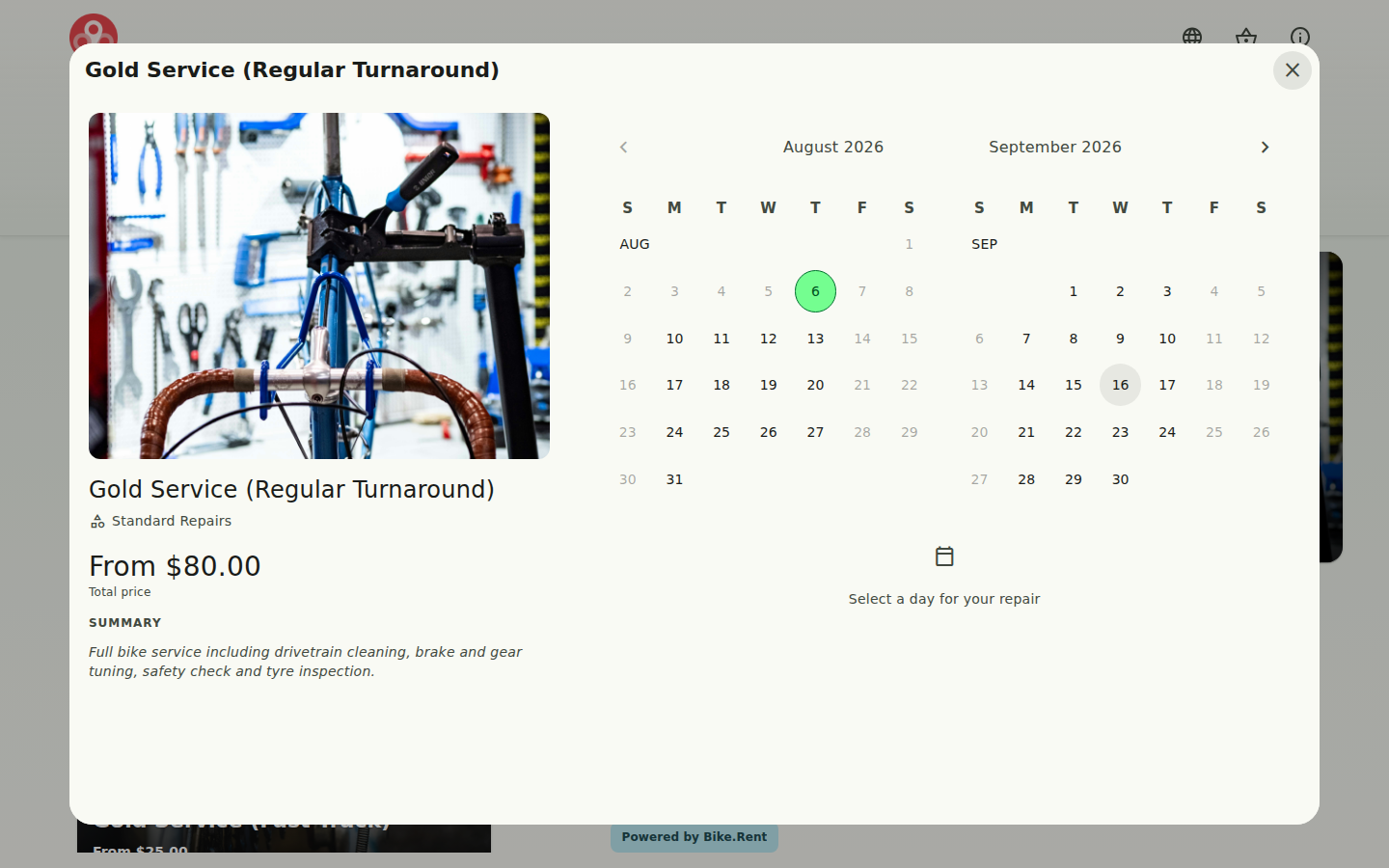
On the booking page each repair shows a live "First available" date — the first day that's both within your mechanic hours and not already full. Days that are closed or already at capacity show greyed out on the drop-off calendar. Customers pick a day, not a time — for how the customer's side works, see How can customers book a repair online?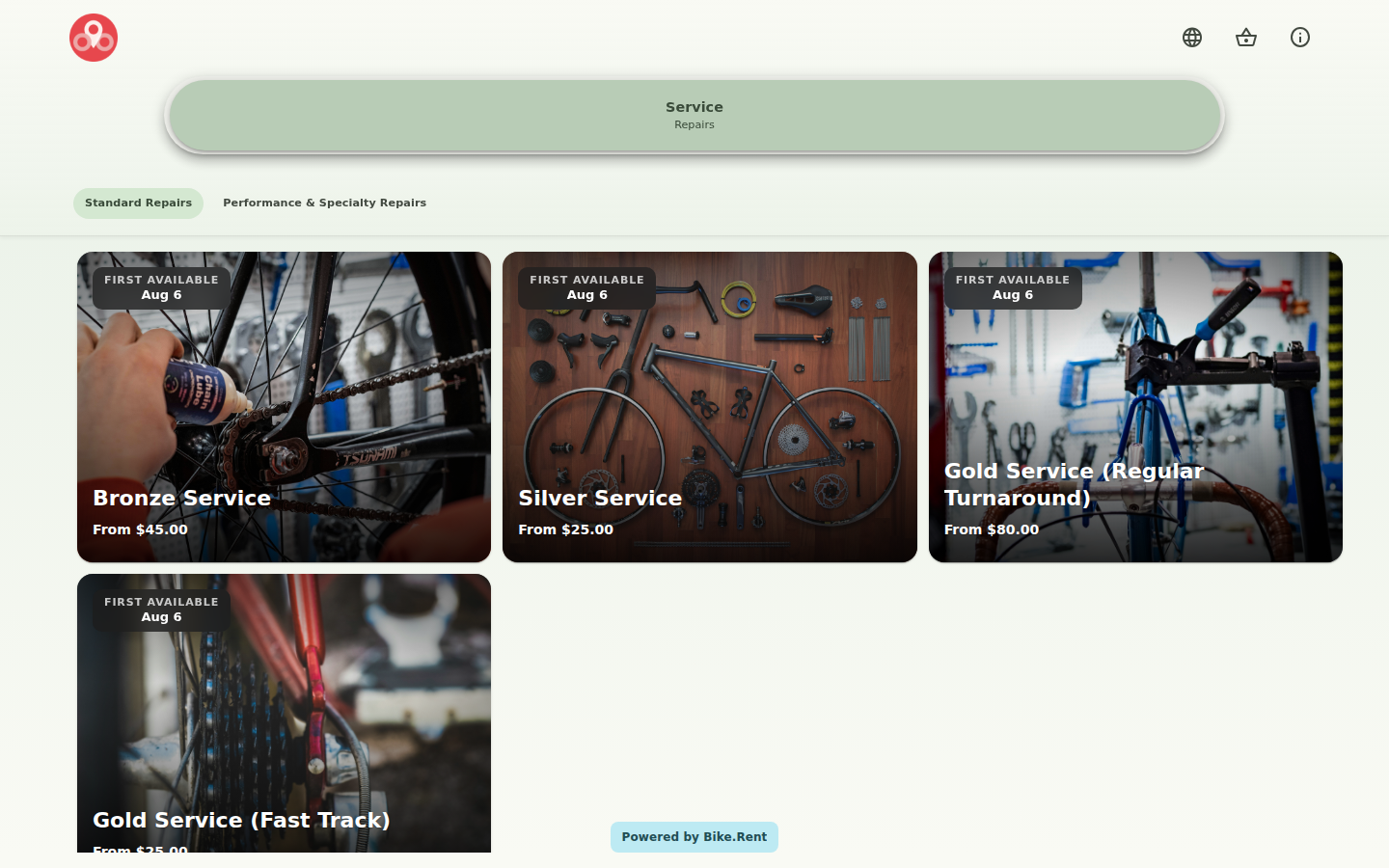
Check it end-to-end
- It shows: the offering appears on your booking page with a "First available" date (or is absent if you set it Internal only).
- Capacity works: set Quantity to a small number, book that many on one day — that day greys out as full, while other open days stay bookable.
- Hours work: add a closed period over an otherwise-open day — that day greys out as closed.
Bookings then arrive in your planner like any other reservation, ready to work through their repair stages.
Related articles
- How can customers book a repair online?
- Working a repair through to completion (quotes, approval & pricing) [TBC]
- How do I set up an offering so customers can book it online?
- Setting collection & delivery per offering
- Hiding a service offering from customers (Internal only)
- Service Offering activation request
Was this article helpful?
That’s Great!
Thank you for your feedback
Sorry! We couldn't be helpful
Thank you for your feedback
Feedback sent
We appreciate your effort and will try to fix the article