You can always get back to your home page by clicking the BRM logo in the top left of the app.
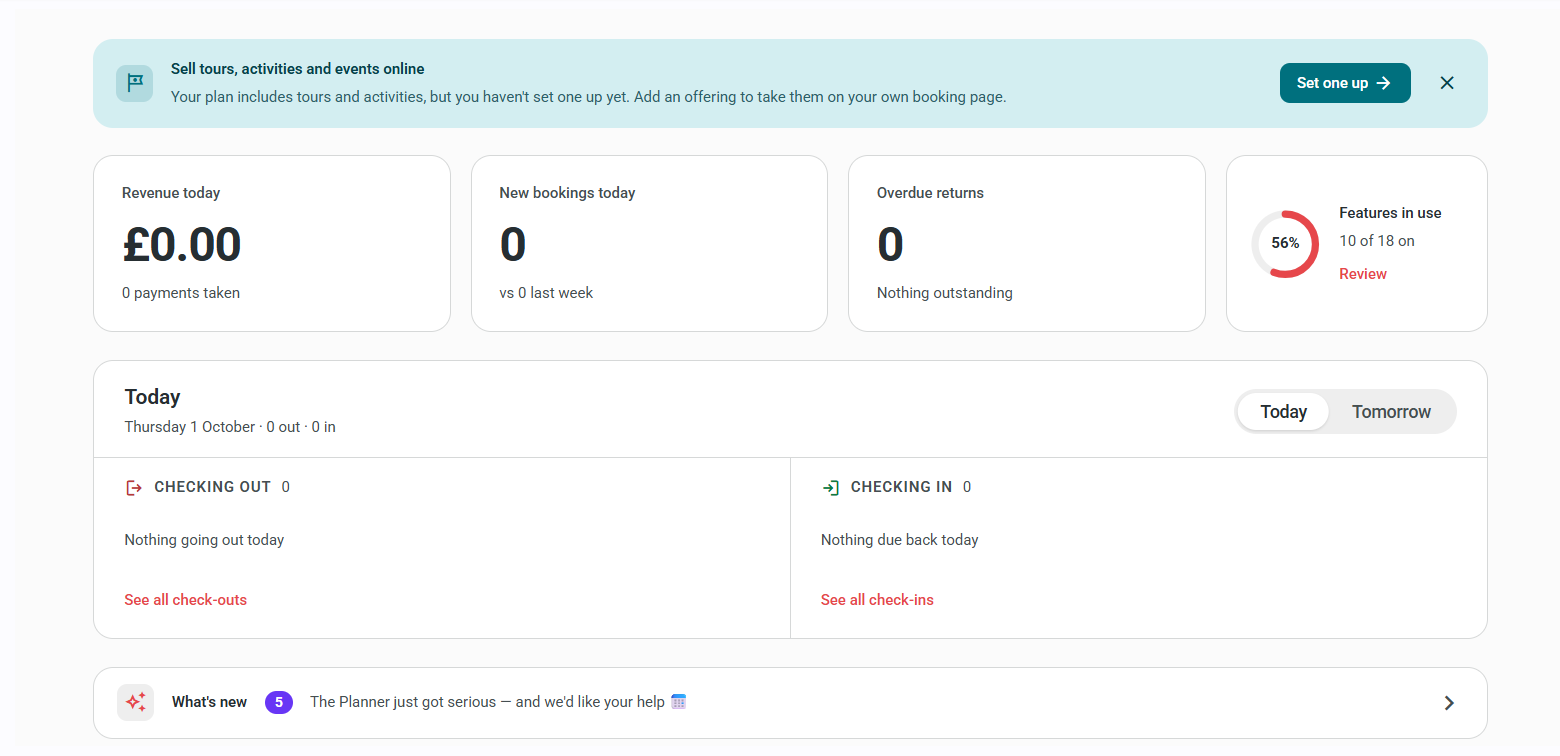
Your home page shows how your store is doing today and who is coming and going. Everything on it comes from your own bookings and payments.
Please note – we're moving stores onto the new home page gradually. If yours still shows four boxes (Checking Out / Checking In, today and tomorrow), you haven't been moved yet. See the old home page until you are.
Getting your store live
While you're still setting up, a banner at the top shows how far through setup you are and what to do next. Click Continue to carry on from where you left off. When you go live, the banner changes to say so. You can dismiss it once you've seen it.
See onboarding phases for more.
Suggestions
Sometimes we'll suggest a feature you haven't used yet, such as Planner 2.0 or selling tours and activities. We show one at a time. Click the link to try it, or the X to hide it. Once you hide a suggestion, it won't come back.
Today at a glance
Four tiles across the top:
| Revenue today | Payments actually taken today, across all payment methods and all locations. This is money received, not the value of today's rentals. It's compared with the whole of the same day last week, so it will look low until the day is over. |
| New bookings today | Bookings made today, whenever they start. It's compared with the same day last week, up to the same time of day. |
| Overdue returns | Rentals that were due back before today and haven't been checked in, going back 30 days. Shows how much is still owed on them. A + after the number means there may be more than we could count. |
| Features in use | How many BRM features and add-ons you have switched on. Click it to see the list (see Features and add-ons below). |
Hover over a tile (or tab to it with the keyboard) to see exactly what it counts. If a tile says Unavailable, we couldn't load that figure. Refresh the page, and contact BRM Support if it keeps happening.
Check-outs and check-ins
The main card lists the bookings going out and coming back. Use Today / Tomorrow to switch days. Each column shows how many bookings there are in total, and lists up to 6 of them.
Each booking shows:
- the time it goes out or is due back
- the customer's name, number of items, booking reference and price
- its stage
- a two-arrows icon if the booking goes out and comes back that same day, so you can plan for it
- a note icon if the booking has notes. Click it to read them without leaving the home page
Click the customer's name to open the booking. Click See all check-outs or See all check-ins to open that day in your planner.
Features and add-ons
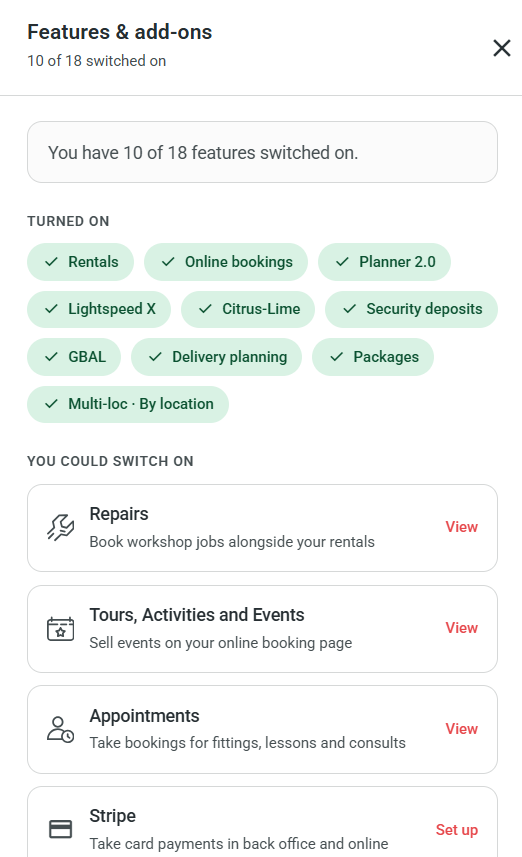
Click the Features in use tile to open the list.
- Turned on – features you already have. Click one to go to its settings.
- You could switch on – features you don't have yet, with a line on what each one does. Click Set up to switch it on yourself. Where we need to switch it on for you, click Contact support.
This counts what's switched on. It doesn't measure how much you use each feature.
What's new
The strip at the bottom of the page shows our latest product news. Click it to read recent updates, then Open the full feed to see everything.
See Also
Was this article helpful?
That’s Great!
Thank you for your feedback
Sorry! We couldn't be helpful
Thank you for your feedback
Feedback sent
We appreciate your effort and will try to fix the article