You can style your Customer Booking Page (CBP) to match your brand — either by entering your brand colours exactly, or by picking one colour and letting us build a coordinated palette around it. You can also choose whether customers see the page in light or dark mode.
Where to find it
Go to Settings > Customer Booking (Online) > CBP Preview. Changes preview live on the page next to the editor, so you can see the result before saving.
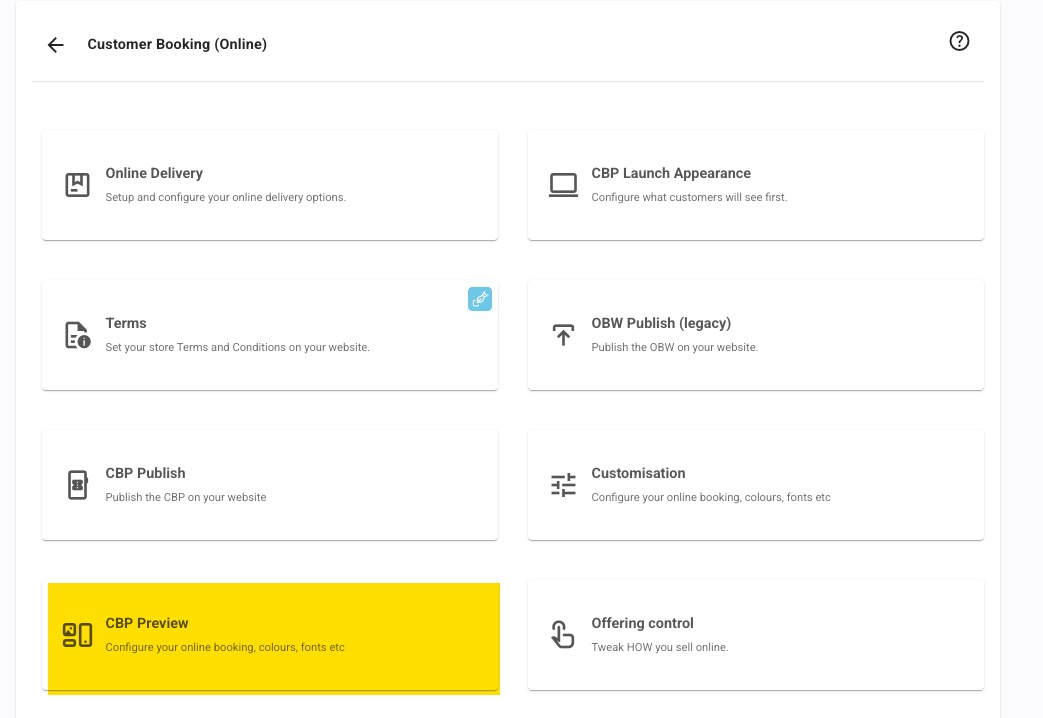
* If you don't see CBP Preview in your menu, contact support and we'll enable it for your store.
Two ways to set your colours
At the top of the editor you'll see How do you want to set your colours? with two choices:
Complete match
Use this when you have brand colours you need to reproduce exactly. You enter four colours as hex codes (or pick them with the colour picker):
- Brand colour — buttons, links and key accents.
- Accent colour — secondary highlights.
- Background — page and card background.
- Text — body text and icons.
These are applied to your booking page exactly as entered, with no adjustments.
Because nothing is adjusted, checking that your colours are readable is up to you. The editor will point out a low-contrast combination as a hint, but it won't stop you saving it or correct it for you. If you're subject to accessibility requirements, check your chosen combination meets them — particularly text against your background colour.
Create your own theme
Use this if you don't need an exact match and would rather have a palette that hangs together. Pick a Base colour and we generate a coordinated palette from it. There are quick-start presets to start from, and a Color Overrides section if you want to fine-tune individual colours afterwards. Reset All puts everything back.
Light and dark mode
Under Light/Dark Mode Settings, Default Mode sets what a visitor sees when they arrive:
- System — follows the customer's own device setting.
- Light — always light.
- Dark — always dark.
If you're using Complete match, System shows your exact colours in light mode and an automatically darkened version in dark mode. Choosing Light or Dark locks your exact colours for every visitor.
Tips
- Preview on a phone as well as a desktop — most online bookings are made on a phone.
- If you want an exact brand match, start with Complete match rather than trying to force the generated palette to match.
See also
Was this article helpful?
That’s Great!
Thank you for your feedback
Sorry! We couldn't be helpful
Thank you for your feedback
Feedback sent
We appreciate your effort and will try to fix the article