All the emails your store sends about bookings are set on one page: Settings → Notifications. From there you choose which emails go out, who gets them, what they say, and who they come from.
This article covers the new Notifications page, sometimes called Notifications 2.0. It's being switched on for stores in batches, and there's nothing for you to set up.
Does my store have the new page?
Go to Settings → Notifications.
- New page: you see a page headed Notifications with a Store defaults table of emails.
- Previous pages: you see four tiles, Who, When, Content and Advanced. Your store hasn't moved yet, and Notifications overview and the articles it links to still apply.
What changes, and what doesn't
Your emails don't change. Your switches, wording and sender details carry across from the previous pages, and customers keep getting the same emails.
Where things are has changed:
| On the previous pages | On the new page |
|---|---|
| Who | Sender details |
| When (who gets each email) | The Customer and Shop switches in the Store defaults table |
| Content (one tab per email) | Edit on each email's row |
| The language dropdown on each email | One tab per language |
| Advanced | Advanced |
The Who, When, Content and Advanced tiles on the Settings page still work, and take you to the matching part of the new page.
What's new:
- A Checked out email you can send when a booking is checked out. See How do I email customers when their booking is checked out?
- Settings for a whole service or a single offering: its own wording, or not sending an email for it. They take effect as soon as you save them. See How do I set notification emails for a service or offering?
- A Text messages card marked Coming soon!. Nothing about texting changes yet.
The Store defaults table
The table lists every booking email, with the line that says when it's sent. It has four columns: Message, Customer, Shop and Edit email.
| Message | When it's sent | Shop column |
|---|---|---|
| Online provisional booking | When an online booking comes in as provisional, before it is confirmed | Switch |
| Booking confirmed | When an online booking is confirmed, including by an online payment | Always sent |
| Cancelled by staff or customer | When a customer cancels online, with the cancellation link in their booking email | Switch |
| Auto-cancelled | When an unpaid provisional booking is cancelled automatically after your auto-cancel time. It uses the same email as Cancelled by staff or customer. | Switch |
| Pre-rental reminder | At 6:00 on the day the booking starts (2 minutes after booking for same-day bookings) | Copied to your reply-to email |
| Checked out | Once per booking, the first time it is checked out, in full or in part. Off until you switch it on. | Not sent to shop |
| Post-rental feedback | Offered to staff when checking a booking in | Not sent to shop |
| Account registration | When a customer creates an account online | Switch |
| Ad-hoc email template | The template for emails you send from a booking | Sent by staff from a booking |
Under Online provisional booking and Booking confirmed, a line says what the email includes for signing, for example "Includes the signature line and waiver, and an electronic signature link."
Changes you make yourself don't email the customer. Confirming or cancelling a booking yourself in Back Office doesn't send these emails, even though the rows mention staff. To tell the customer, send the email from the reservation's Comms tab. See Does BRM email the customer when I cancel a booking myself?
Turn an email on or off
- Go to Settings → Notifications.
- Find the email in the Store defaults table.
- Click its switch:
- Customer sends the email to the customer.
- Shop sends your shop a copy, to your shop notification addresses.
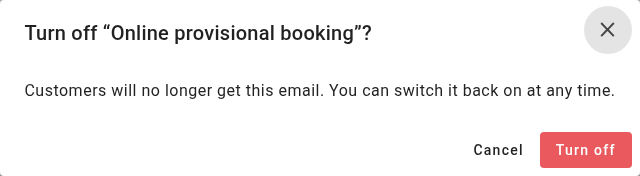
Turning a switch on saves straight away. Turning one off asks you first: click Turn off to confirm, or Cancel.
For the Pre-rental reminder, switching it on or off applies to bookings made from then on. Bookings already made may still get theirs. Wording changes apply to every reminder not yet sent.
Change what an email says
- In the Store defaults table, click Edit on the email's row.
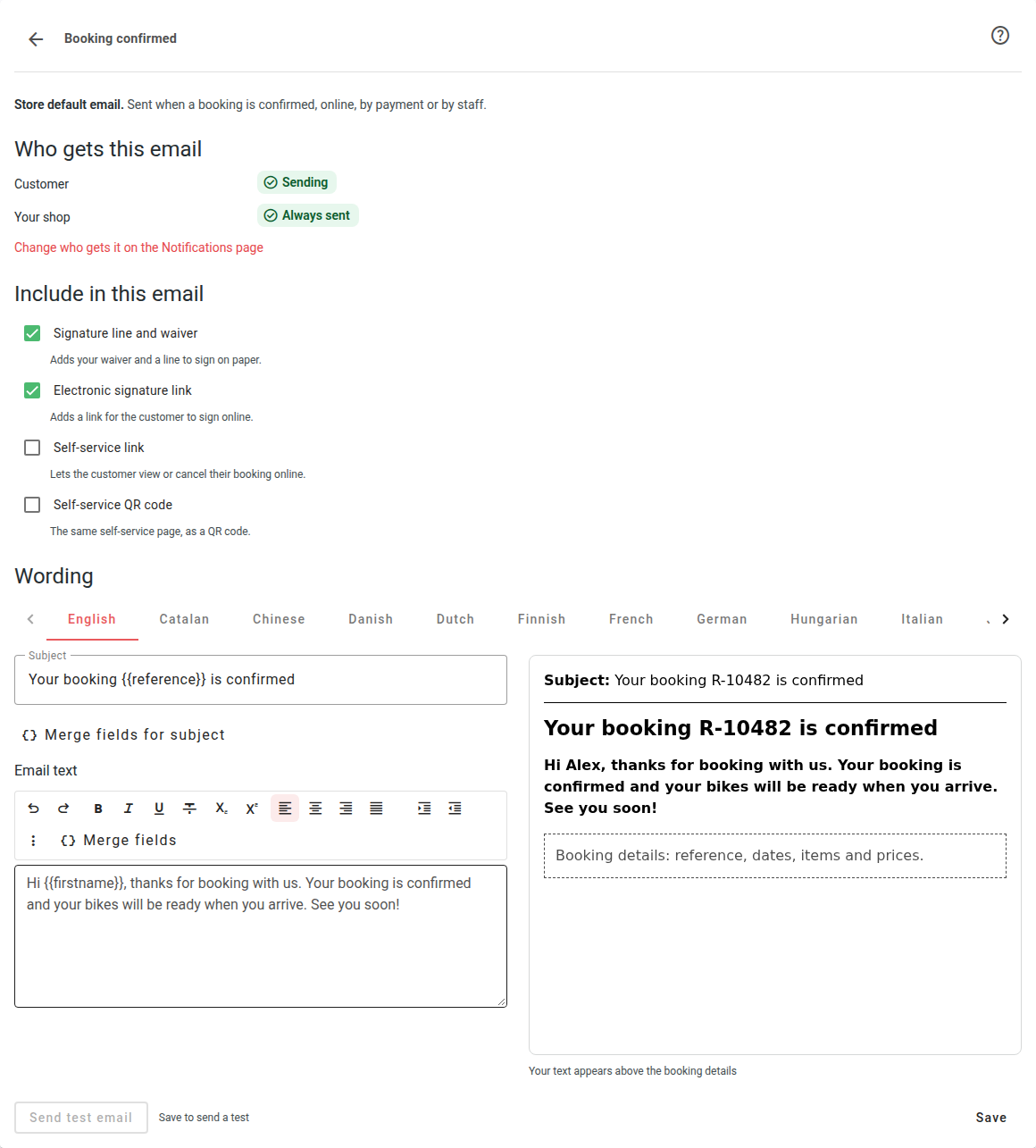
- At the top, Who gets this email shows who it goes to. To change that, use the switches on the Notifications page (Change who gets it on the Notifications page).
- For Online provisional booking and Booking confirmed, choose what to add under Include in this email:
- Signature line and waiver: adds your waiver and a line to sign on paper.
- Electronic signature link: adds a link for the customer to sign online.
- Self-service link and Self-service QR code: let the customer view or cancel their booking online. These show only if your store offers self-service cancellations.
- Under Wording, click the tab for the language you want to change. Your store's language comes first.
- Edit the Subject and the Email text.
- To add the customer's name or the booking reference, click Merge fields (or Merge fields for subject) and choose {{firstname}}, {{lastname}} or {{reference}}.
- Check the preview. In booking emails your text appears above the booking details (reference, dates, items and prices), which every booking email includes.
- Click Save. You'll see Email saved.
Languages
There's one tab for each of your store's languages. A tab with no wording saved says so, for example: "No German wording is saved, so German customers get the English email shown here." To translate it, write in that tab and save.
The Account registration email is always sent in your store's language.
If Save shows a problem
Problems are listed under Fix these before saving, by language. The most common are:
- "The subject must be one line of plain text, without HTML."
- "Merge fields can't be used inside links or images."
- A broken merge field: a merge field that picked up formatting or a space inside its braces. Delete it and insert it again from the Merge fields menu.
Send yourself a test email
You can test Online provisional booking, Booking confirmed, Cancelled by staff or customer and Pre-rental reminder.
- Open the email and save any changes. (Send test email waits until you've saved: "Save to send a test".)
- Click Send test email.
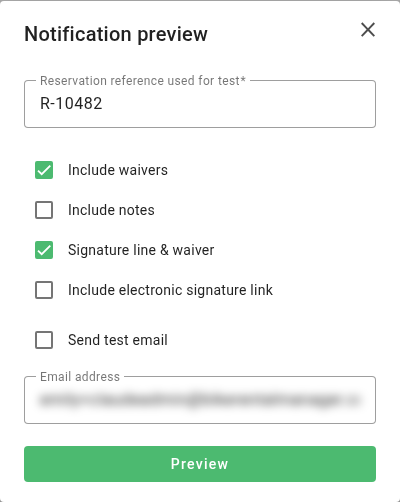
- In Reservation reference used for test, enter the reference of a booking to fill the email with. Use one of your own test bookings.
- Choose what to include. Include electronic signature link is always unticked to start with, because ticking it creates a real signing request on that booking. See Why does my test email not include the e-signature link? in New Notifications page: common questions.
- To have it emailed, tick Send test email and check the Email address. Leave it unticked to see the email on screen only.
- Click Preview.
The test uses the language of the tab you had open.
Sender details
- Go to Settings → Notifications and click Edit sender details on the Sender details card.
- Under Emails to customers, set:
- From name: who customers see the email is from.
- Reply-to email: where a customer's reply goes.
- Under Booking notifications to your shop, set Shop notification addresses: where your shop's copies go. Separate several addresses with commas.
- Click Save. You'll see Sender details saved.
Customer booking emails depend on your shop notification address being valid. If it's missing or wrong, a message at the top of the Notifications page says so, with a link to Update sender details.
Advanced
On the Advanced card, click Edit advanced settings to add your own Print CSS: styles for the booking documents in your emails and printouts, such as fonts and spacing. Enter CSS rules only, without a <style> tag. Leave it empty to use the standard styling.
Related
Was this article helpful?
That’s Great!
Thank you for your feedback
Sorry! We couldn't be helpful
Thank you for your feedback
Feedback sent
We appreciate your effort and will try to fix the article