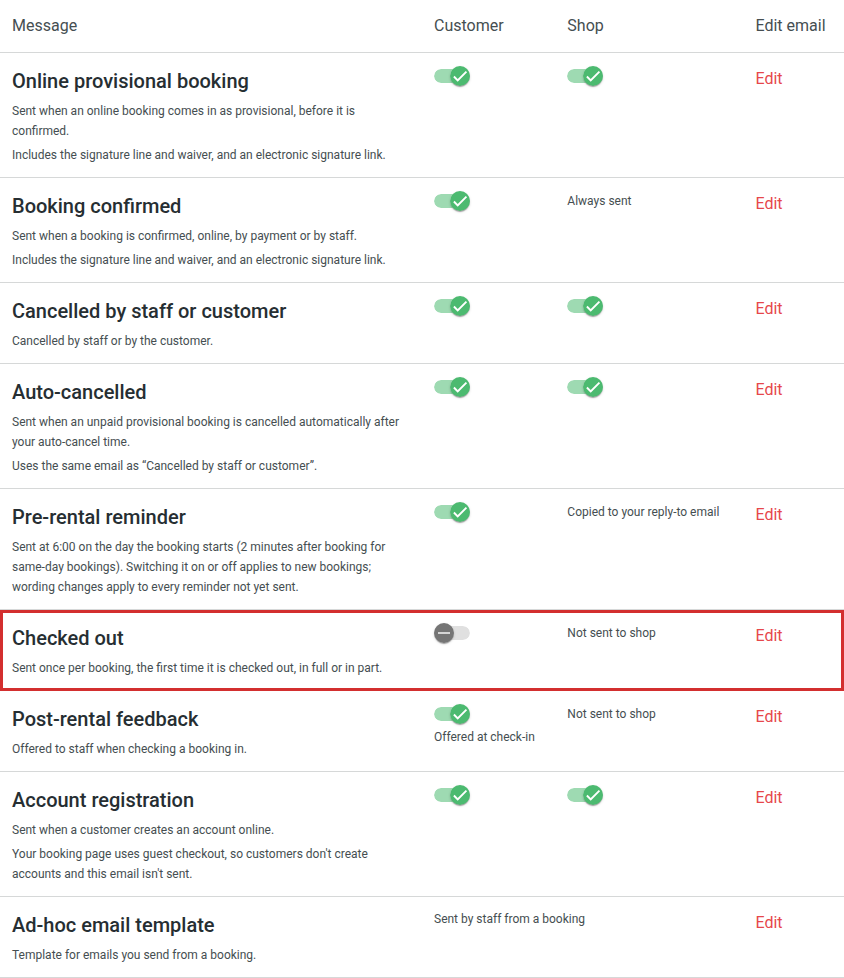
The Checked out email is a new customer email. It goes to the customer when you check their booking out, and you write what it says. Stores use it for a link to their safety video, how to return the keys, where to lock up, or the number to call if something goes wrong.
It's off until you switch it on, so nothing changes for your customers until you do.
When it's sent
- Once per booking, the first time the booking is checked out, in full or in part.
- It goes out straight away, from wherever the booking is checked out: the reservation, the Planner, a partial check-out, or an integration that checks bookings out.
- It isn't sent again if the booking is checked out a second time, for example after you move it back a stage and check it out again, or when a partial check-out becomes a full one.
- It goes only to the customer, and only if the booking has their email address. Your shop doesn't get a copy.
Each one shows in the booking's Comms tab as Checked out.
Before you start
The Checked out email is on the new Settings → Notifications page. If clicking Notifications shows four tiles (Who, When, Content and Advanced), your store is still on the previous pages and doesn't have this email yet. See How do I set up my booking emails on the new Notifications page?.
Write the email first
Write your wording before you switch the email on. Until you do, customers get the standard wording:
| Standard wording | |
|---|---|
| Subject | Your booking {{reference}} is checked out |
| Email text | Dear {{firstname}} {{lastname}}. Your booking, {{reference}}, is now checked out. Enjoy your rental! |
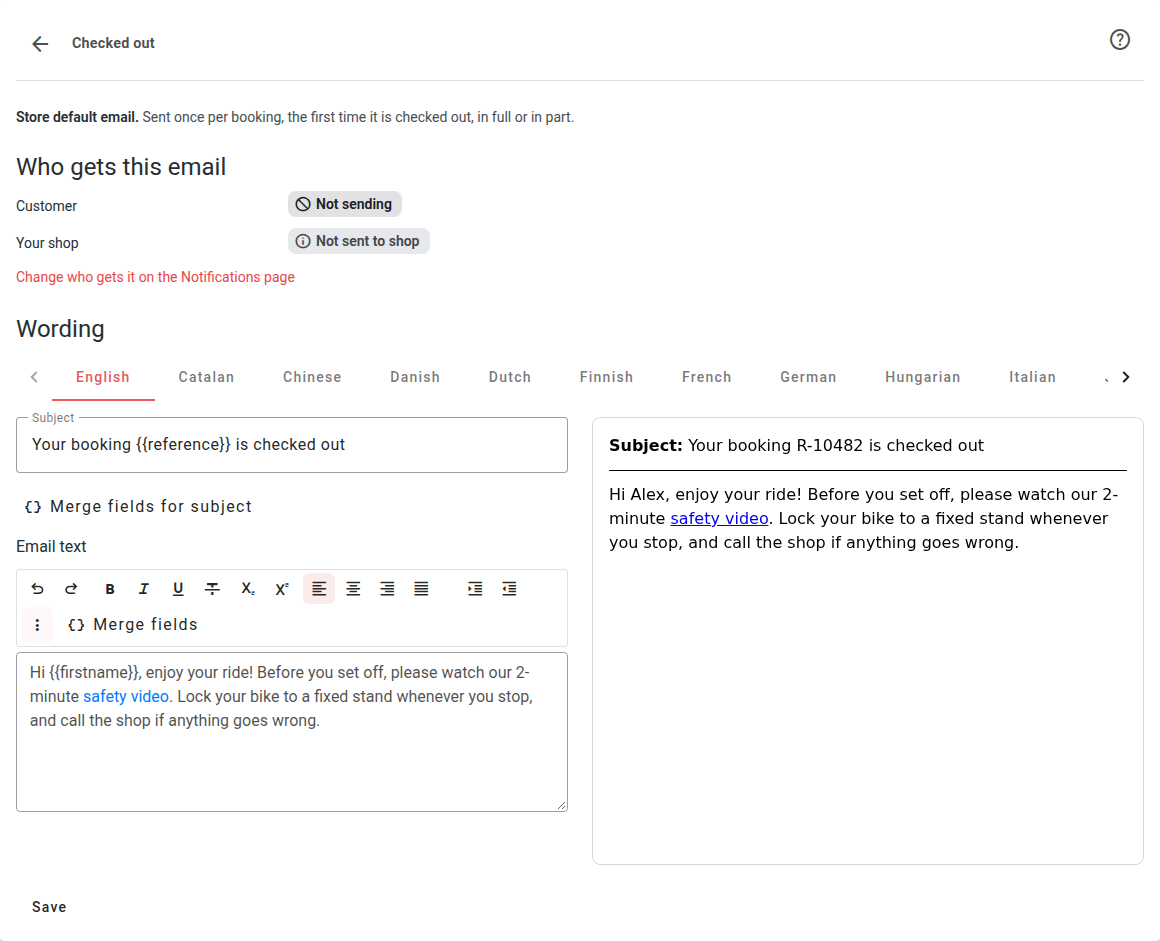
- Go to Settings → Notifications.
- In the Store defaults table, find Checked out and click Edit.
- Under Wording, choose the language tab you want to write in. Your store's language comes first.
- Write the Subject and the Email text.
- To add the customer's name or the booking reference, click Merge fields and choose {{firstname}}, {{lastname}} or {{reference}}. For the subject, use Merge fields for subject.
- To add a link, such as your safety video, select the words to link, click More formatting (⋮) in the email text toolbar, then Insert link. Merge fields can't go inside a link.
- Check the preview. It shows the whole email, filled in with sample details.
- Click Save. You'll see Email saved.
Other languages
The email is sent in the booking's language when you've written wording for it, and in your store's language when you haven't. A tab with nothing saved says so: "No German wording is saved, so German customers get the English email shown here." Write in that tab and save to translate it.
Switch it on
- Go to Settings → Notifications.
- In the Store defaults table, find Checked out.
- Turn on the switch in the Customer column. It saves straight away.
From then on, every booking you check out gets the email. To stop it, turn the switch off and click Turn off to confirm.
Good to know
- There's no "Send test email" for this one. To see it as a customer would, make a booking with your own email address and check it out.
- It has no waiver or signature link. Waiver links go in the provisional and confirmed emails. If riders must confirm something, such as watching your safety video, ask them on the waiver instead: see How do I add my own checkboxes to the waiver?.
- It's one email for the whole store. It can't be set differently for a service or an offering.
- It isn't the post-rental email. The Post-rental feedback email is offered to staff at check-in, when the customer brings everything back. See Post Rental Email.
Was this article helpful?
That’s Great!
Thank you for your feedback
Sorry! We couldn't be helpful
Thank you for your feedback
Feedback sent
We appreciate your effort and will try to fix the article