Wanting to offer Repairs? Repairs is a service you switch on for your store. To switch it on, find Repairs under Services in the side menu and click Activate. You can also reach out to support if you have questions first.
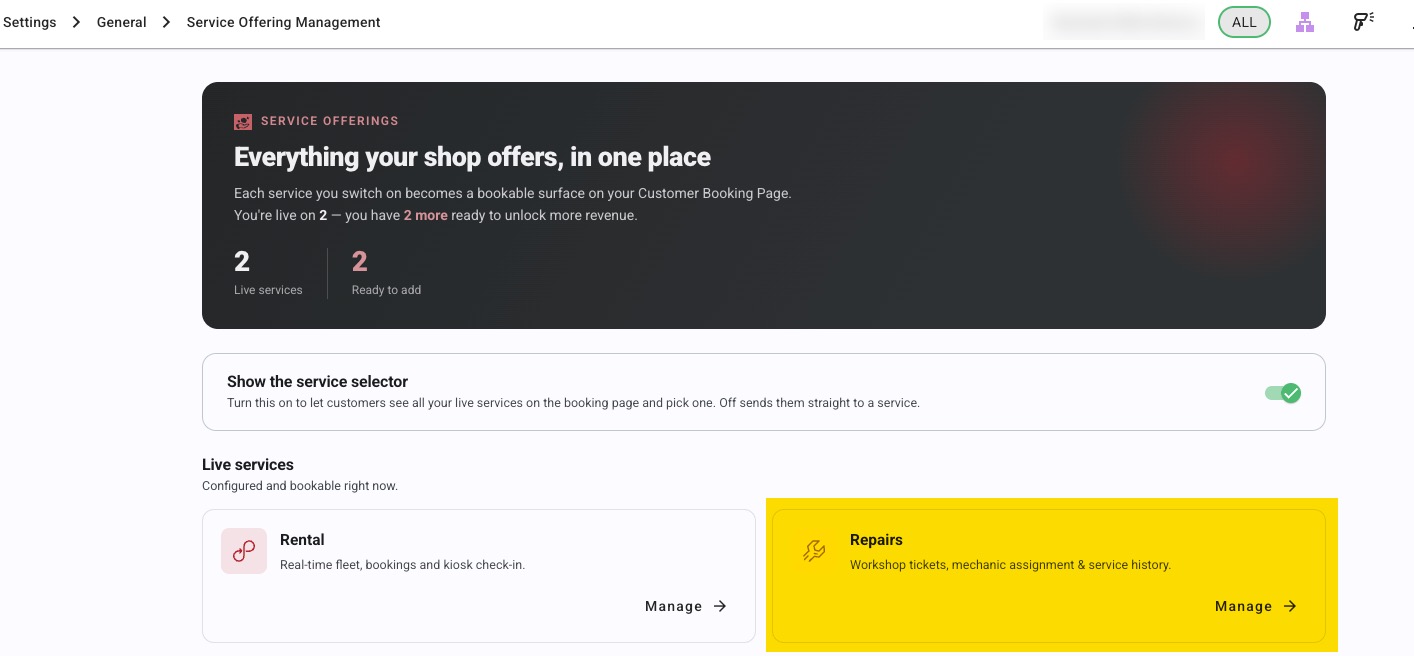
To set up your repairs service, see Setting up Repairs for your store: a complete guide.
Your Customer Booking Page isn't only for rentals — customers can book a repair or service online and drop the bike in, without having to call or email.
How it works for the customer
Your repair offering appears on the booking page alongside your other offerings. (or you can have 2 distinct pages on your site) The customer picks the repair or service they want, chooses the day they'll bring the bike in, says how many bikes they're bringing, describes what's wrong, enters their details and confirms.
Repairs are booked by day, not by appointment time — the customer is choosing when to drop the bike off, not booking a slot on your workshop calendar.
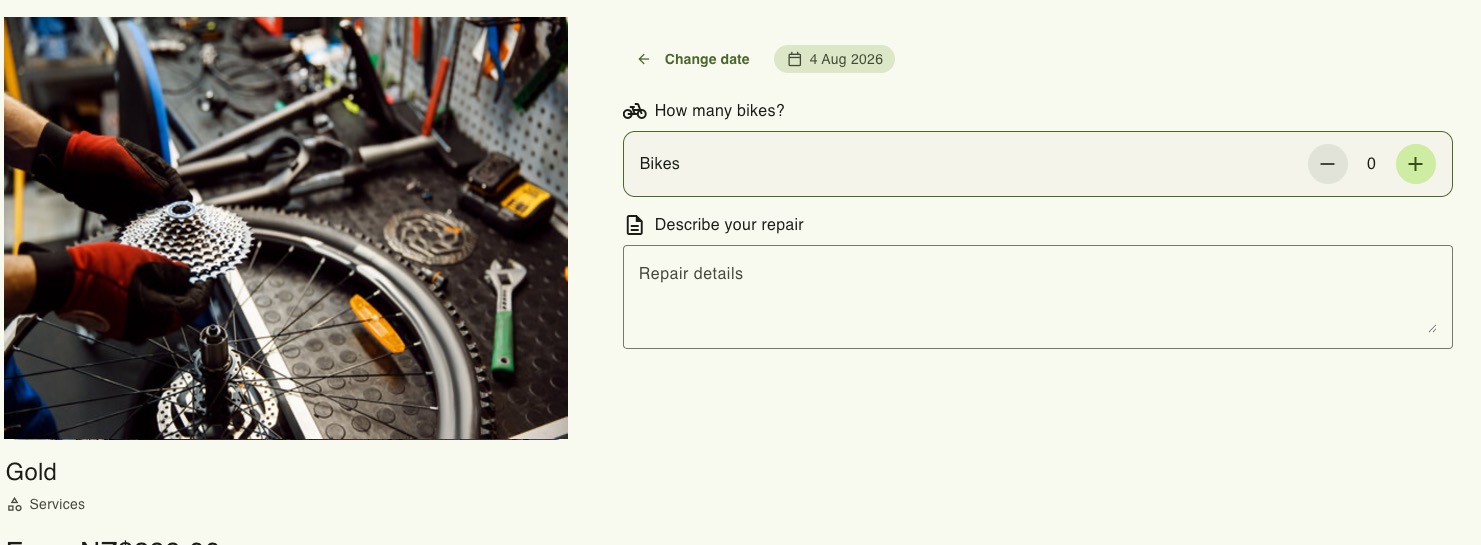
Telling you what's wrong with the bike
The repair flow includes a built-in Describe your repair box, prompting the customer for something like "rear brake rubbing, gears slipping". You don't need to create a custom field for this — it's part of the repair booking.
How it differs from a rental booking
The repair checkout is deliberately shorter than a rental checkout. There's no per-rider details step and no rental extras — just the repair, the quantity, the drop-off day and the customer's details.
What you need in place
- A repair offering set live on the booking page — see setting up an offering for online booking.
- The days and times you accept repairs. Set them on the repair offering, or your store hours apply. See How do I set opening hours for a single service offering?.
After the booking is made
The repair arrives in the Back Office like any other booking, and you work it through your normal repair process from there. But the stages of the repair booking are tailored to repairs, rather than rental.
For example the lifecycle is:
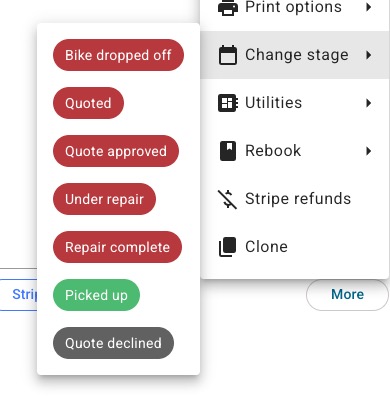
When your mechanic has had a look at the bike and understands the work to be done, they can automatically send a quote to the customer, along with a comment:
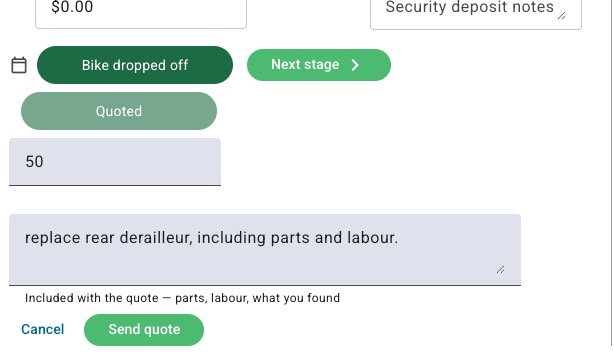
The customer will automatically be send the quote and has the chance to respond:
First of all in their email
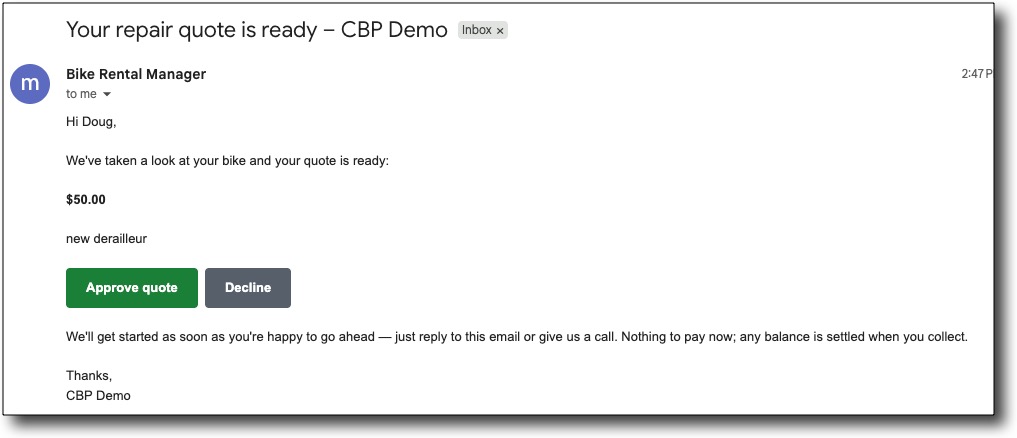
which takes them here (on their mobile / desktop) to approve or decline:
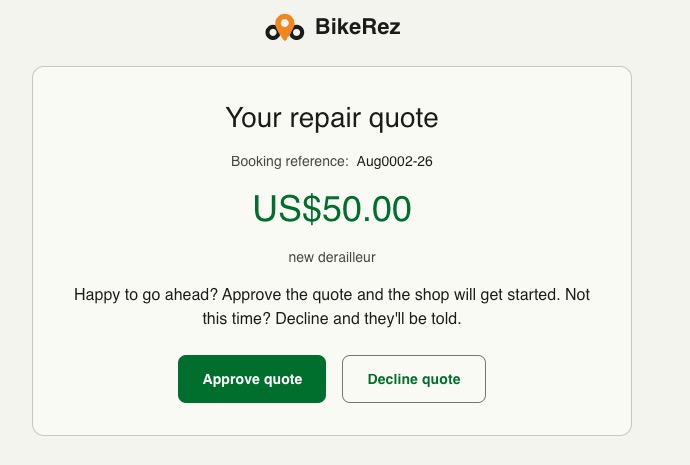
Their answer automatically and instantly updates the repair ticket back in BRM with their response.
Things to watch
- Each day takes as many repairs as the Quantity on the repair's product line. A Quantity of 0 takes no bookings at all. See Setting up Repairs for your store: a complete guide.
- Keep the repair offering's closed periods up to date around holidays and closures.
Was this article helpful?
That’s Great!
Thank you for your feedback
Sorry! We couldn't be helpful
Thank you for your feedback
Feedback sent
We appreciate your effort and will try to fix the article